Solidar App User Guide
Last updated: May 23, 2026
This guide is organized in 6 sections as shown below. Each section explains the steps using screen shots.
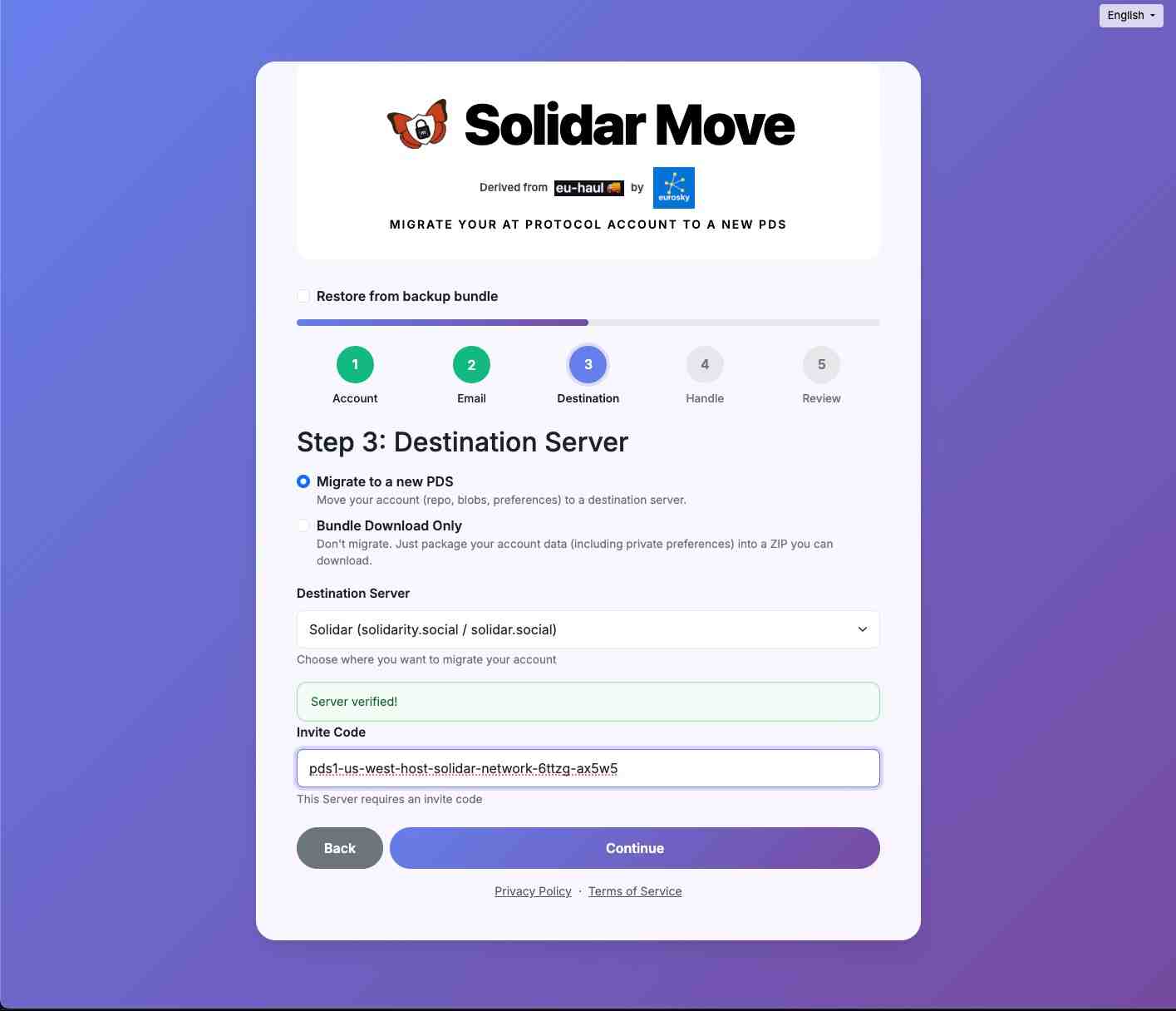
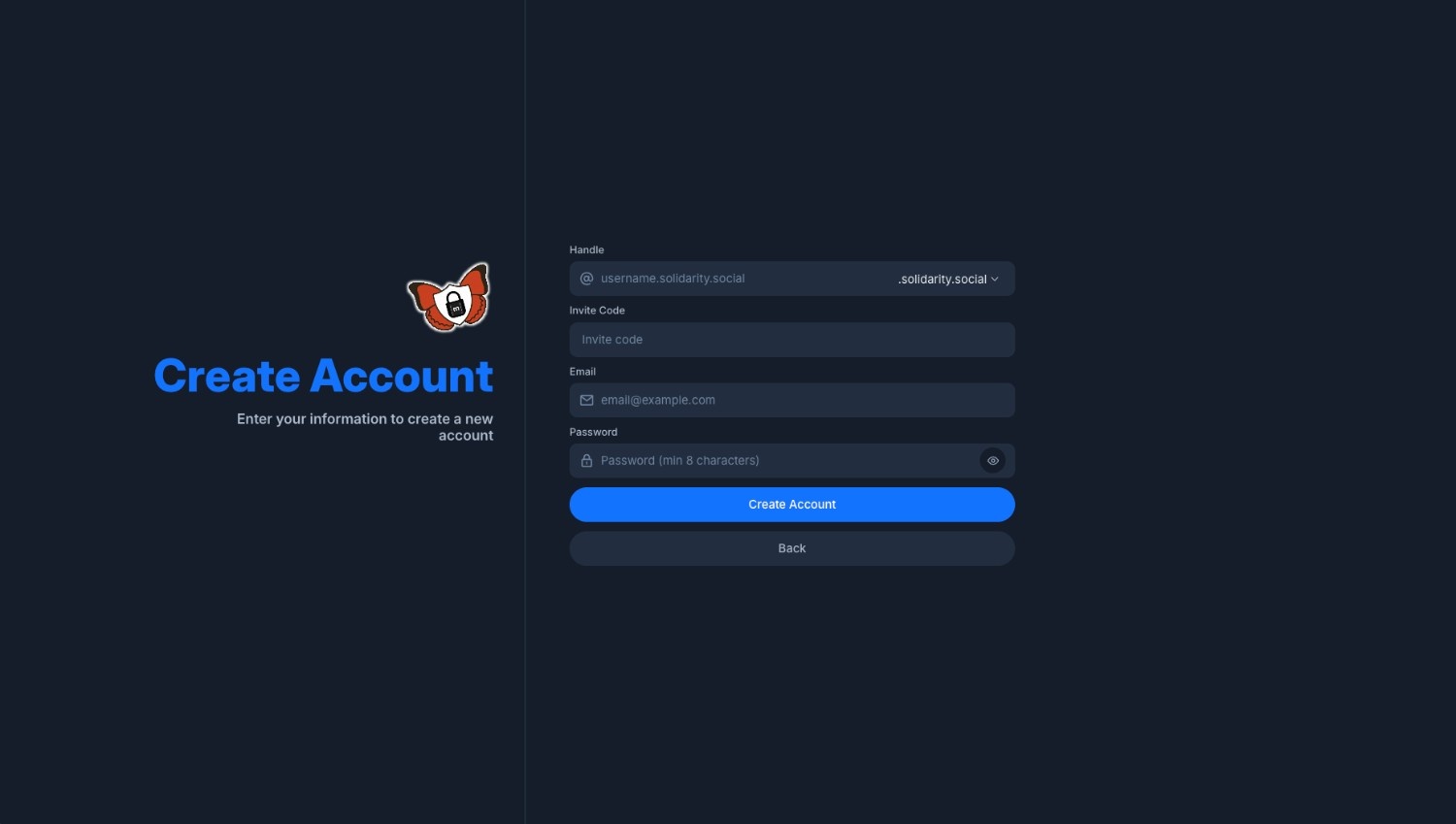
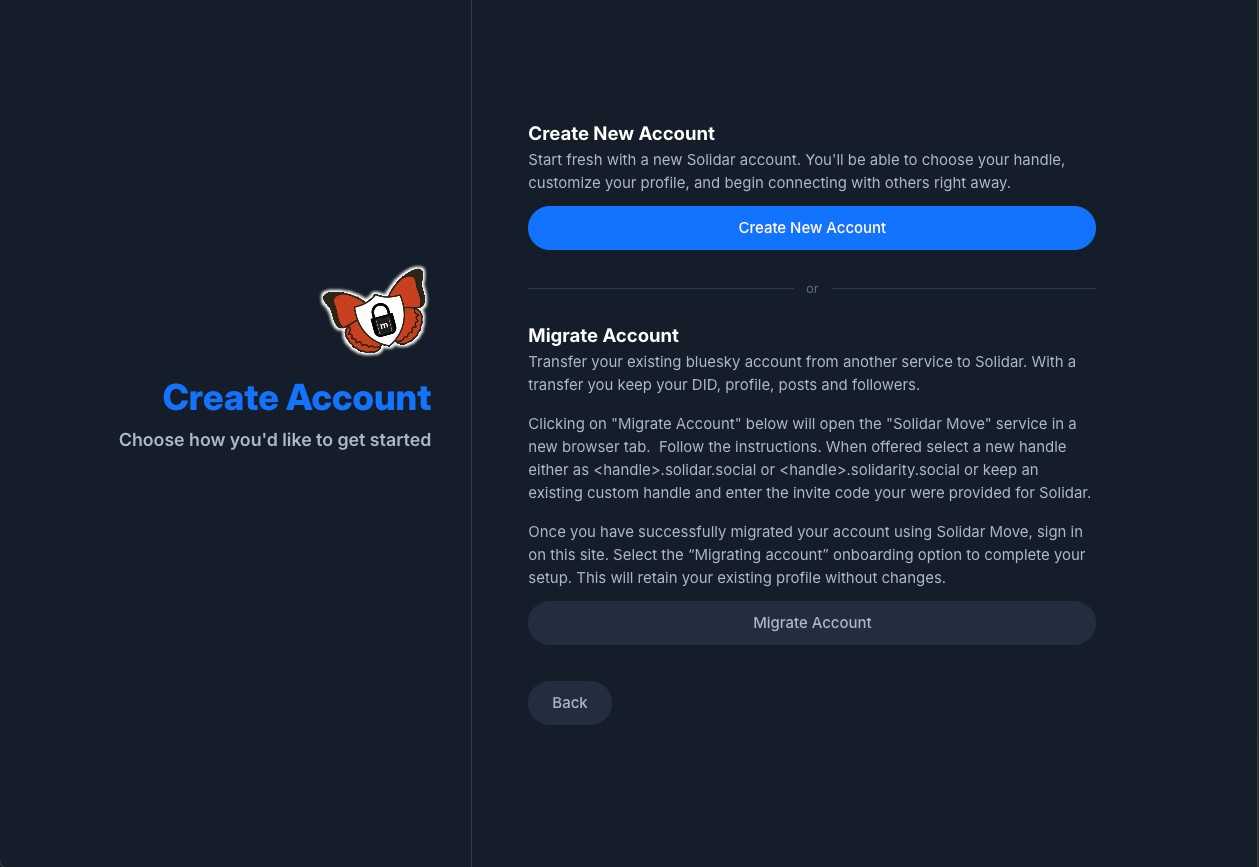
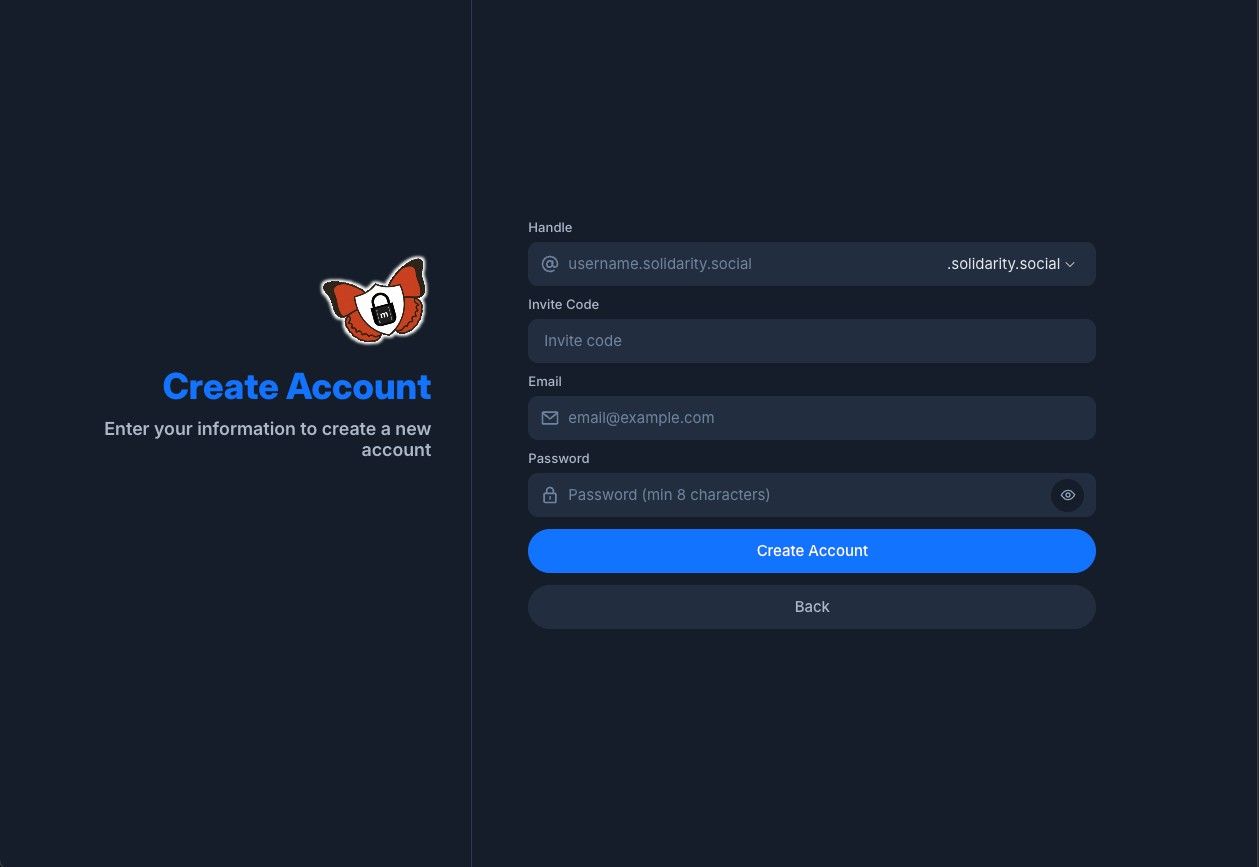
- Create a new account or migrate an account
- Onboarding
2.a. Select homeserver for secure messaging
2.b. Migrate profile or do Bluesky onboarding - Using secure messaging
- Using matrix clients to access secure messaging
- Guide on installing mobile app
- Guide on using invite code
1. Create new account or migrate an account.
2. Onboarding
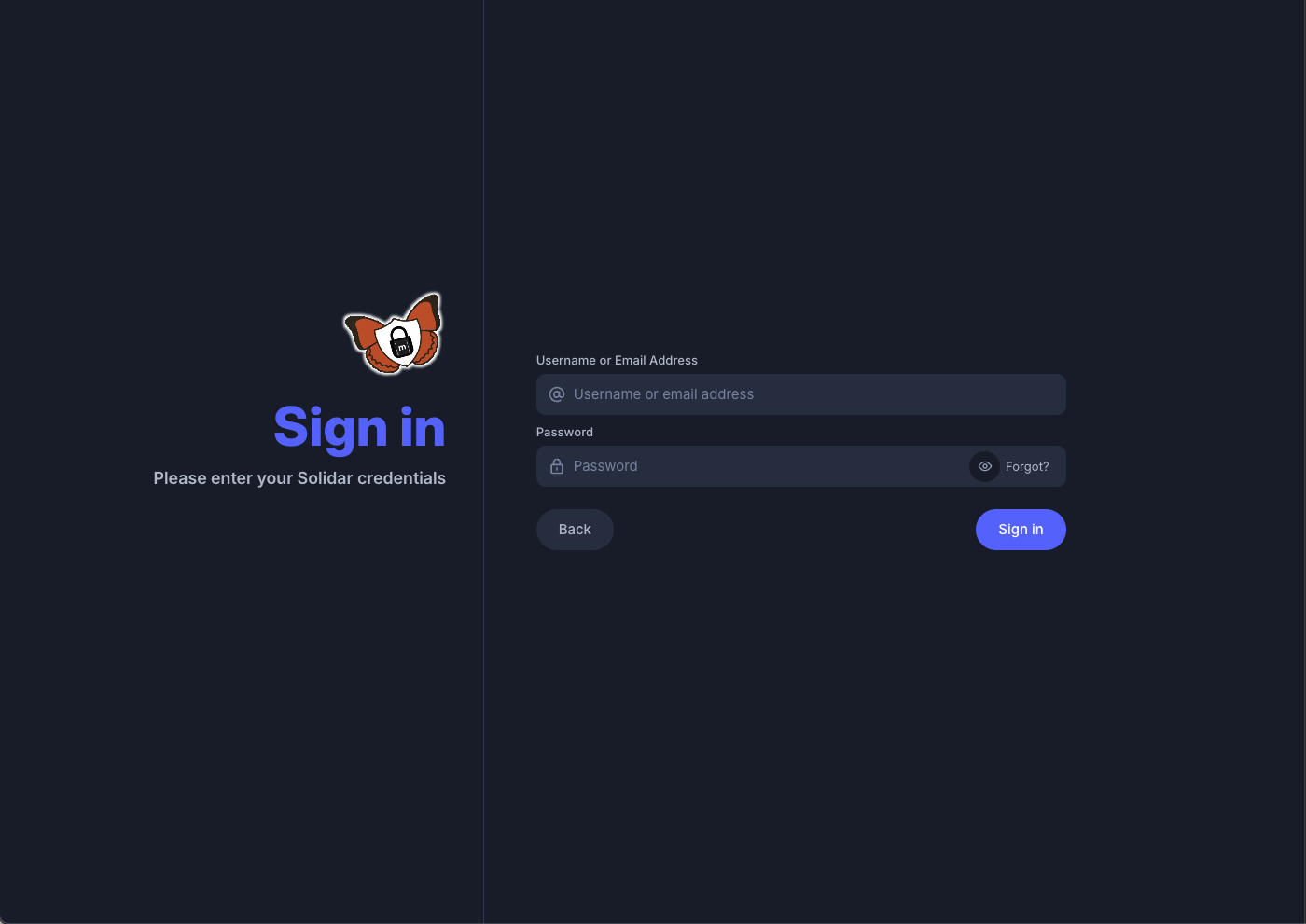 When you are new, the app may guide you through these screens:
2.a. Select homeserver for secure messaging
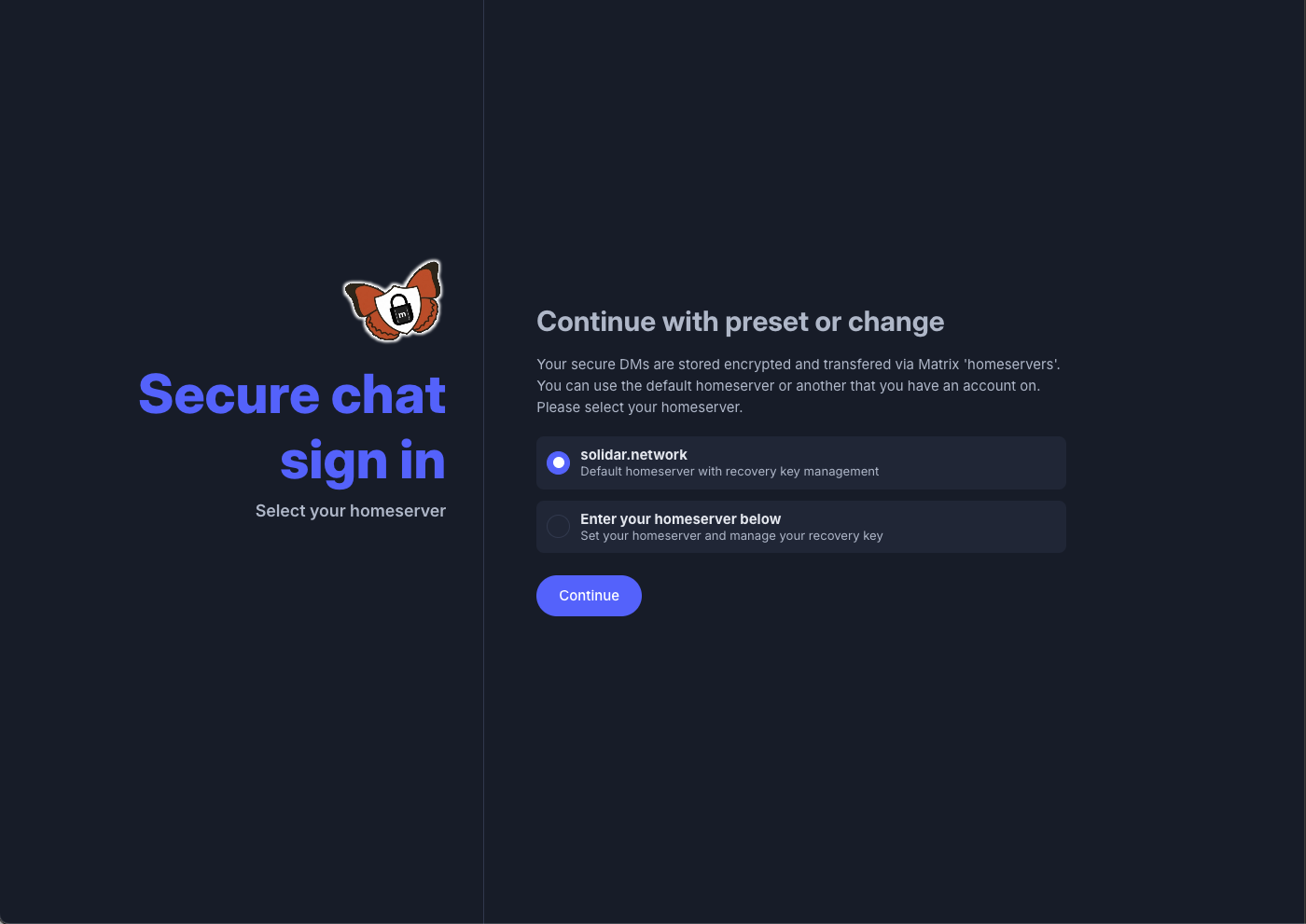
Select a home server for secure messaging.
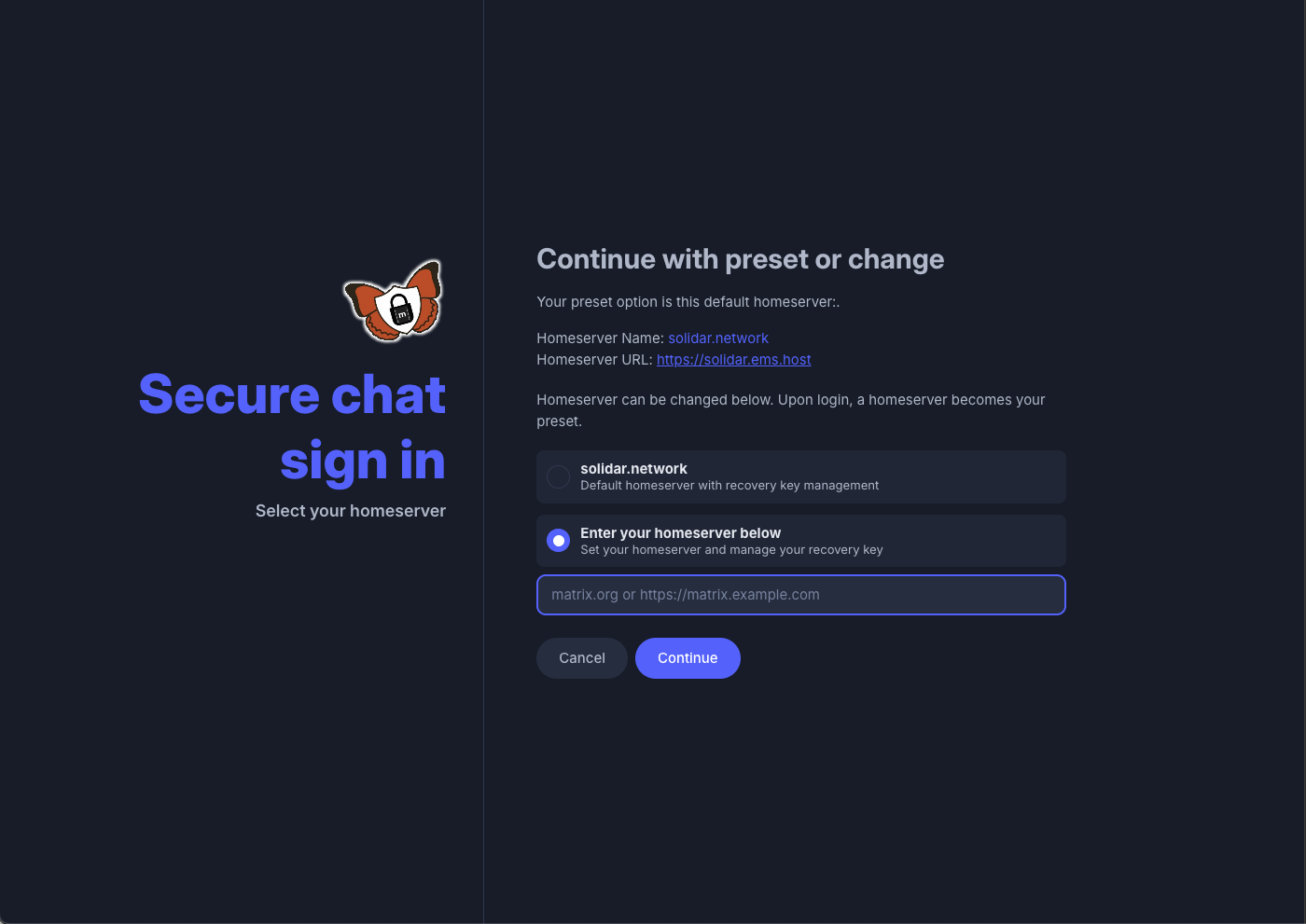
You can choose the home server we provide or connect to a custom home server from your organization
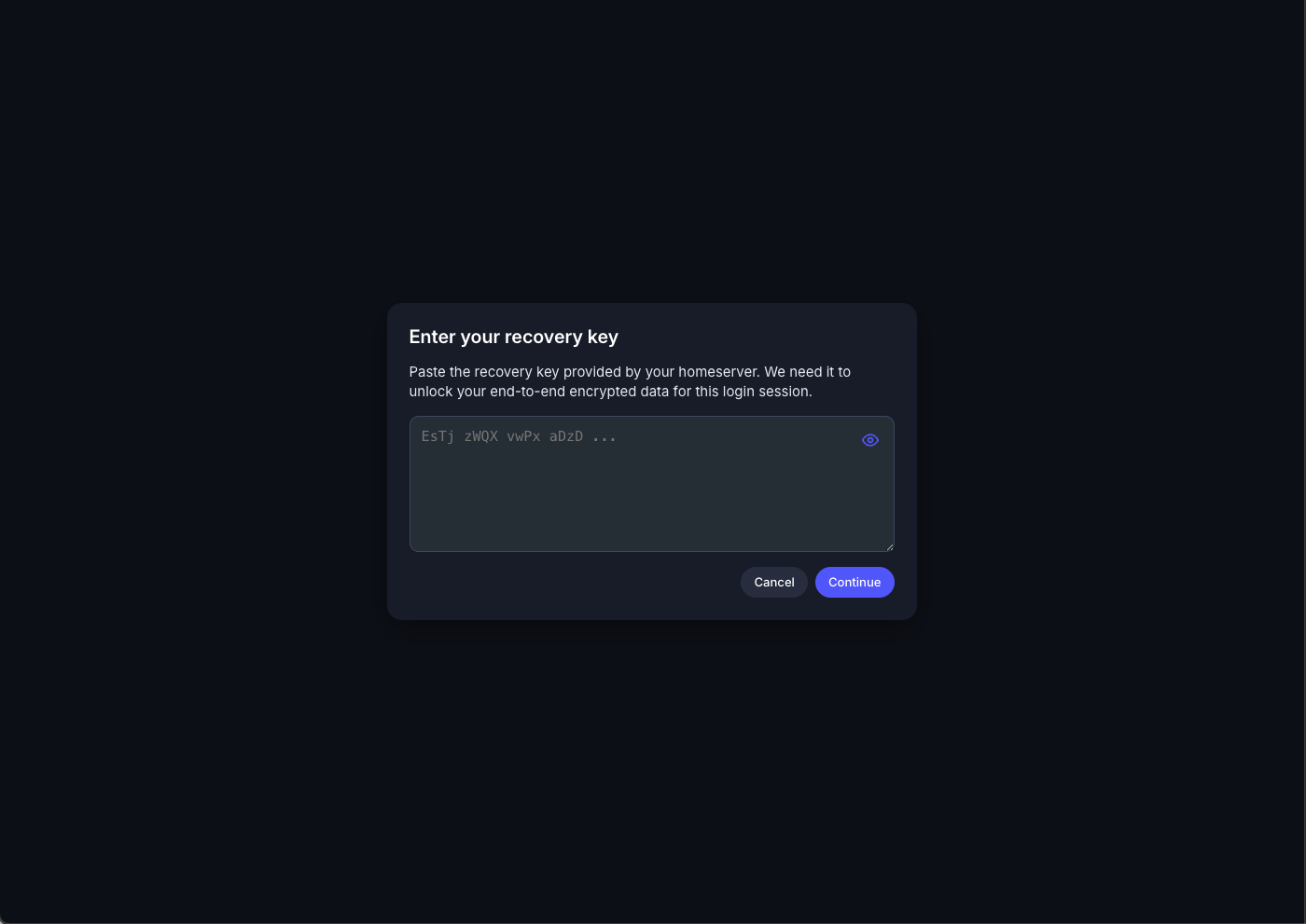
 Choosing a custom homeserver will require you to enter your recovery key at login.
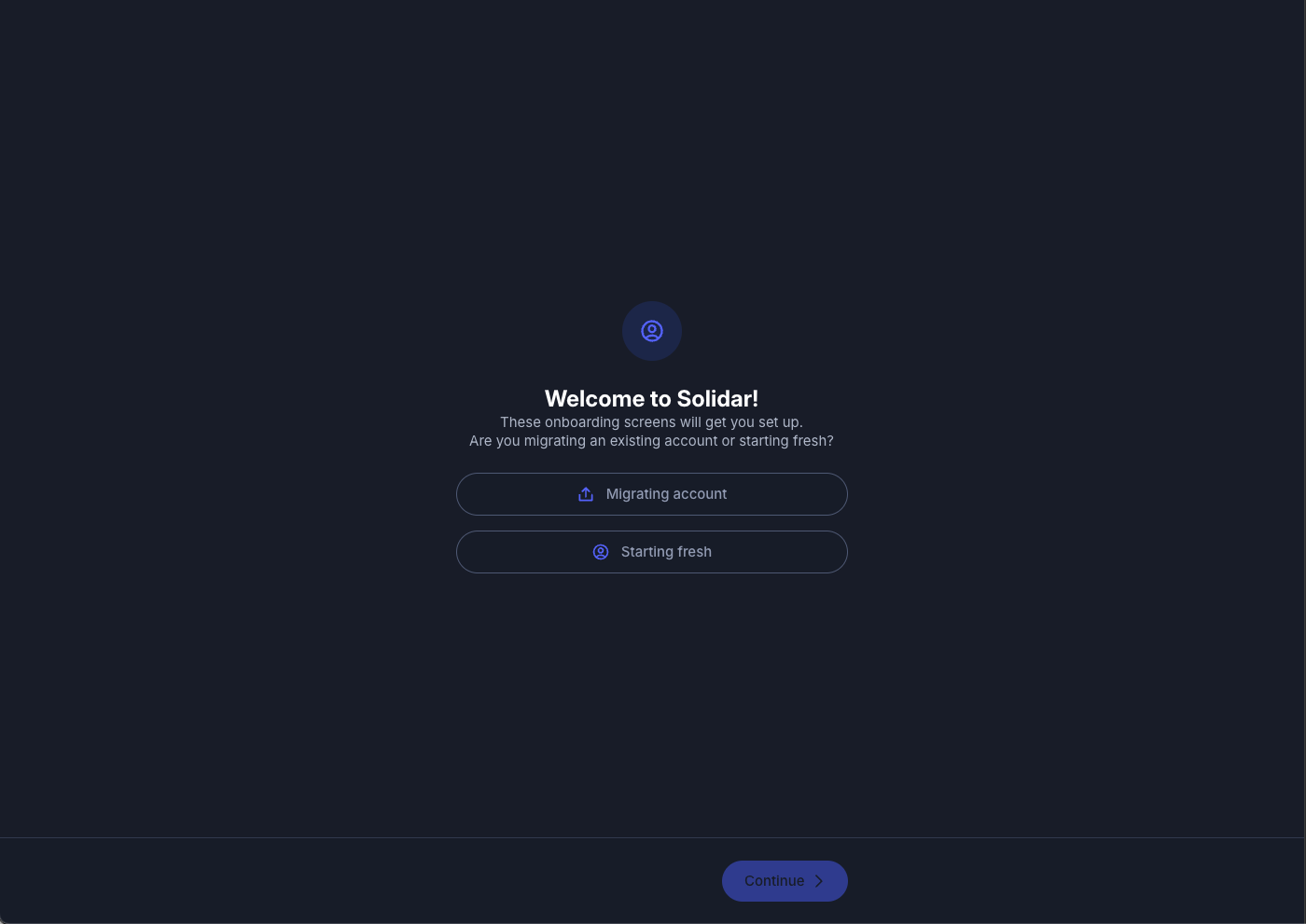
2.b. Migrate profile or create a new one
Select “Migrating account” to migrate from Bluesky, or choose “Starting fresh” to begin a new account.
3. Using secure messaging
The shield chat icon indicates secure messaging. It is available between Solidar users who follow each other.
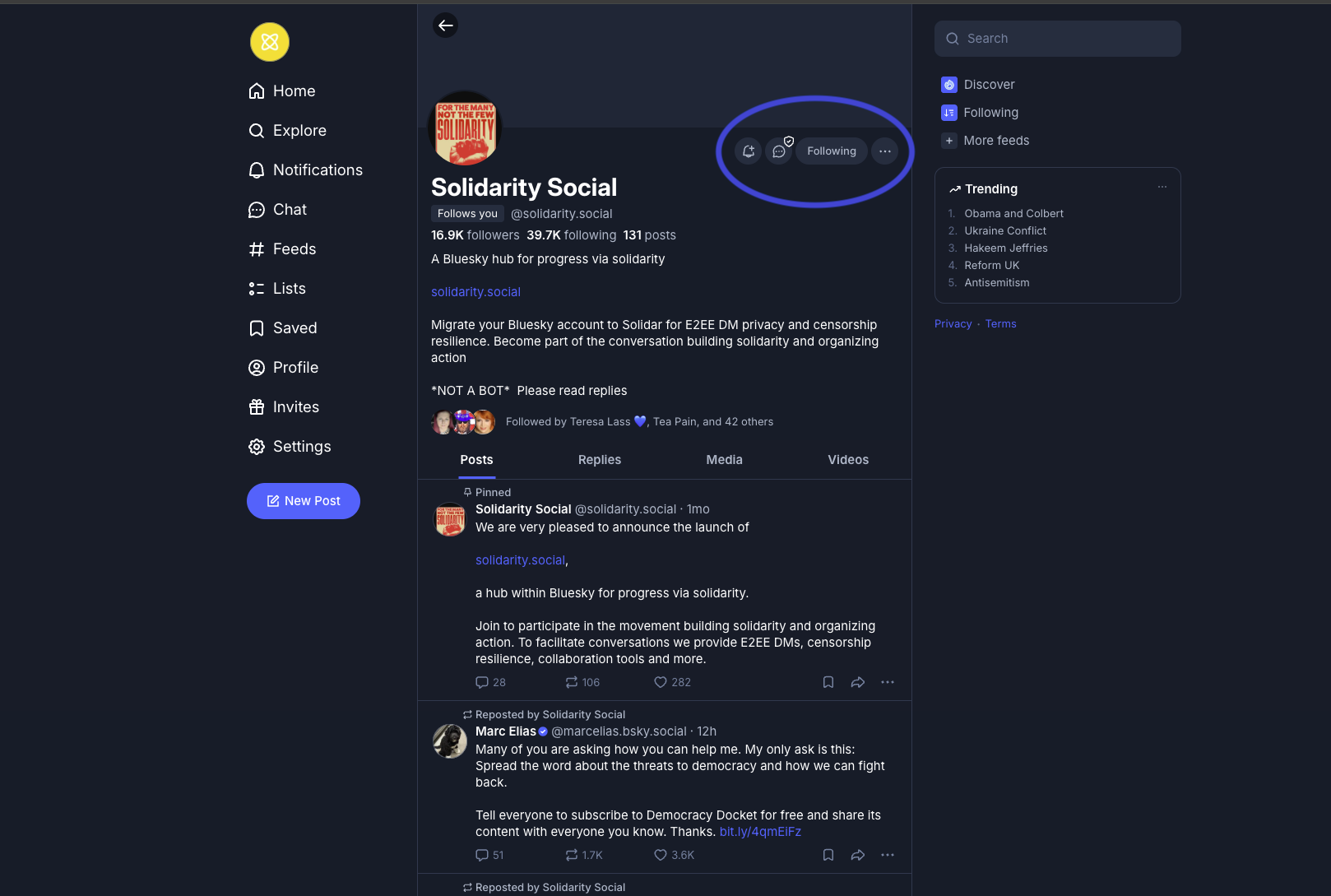 Tabs showing a list of secure chats.
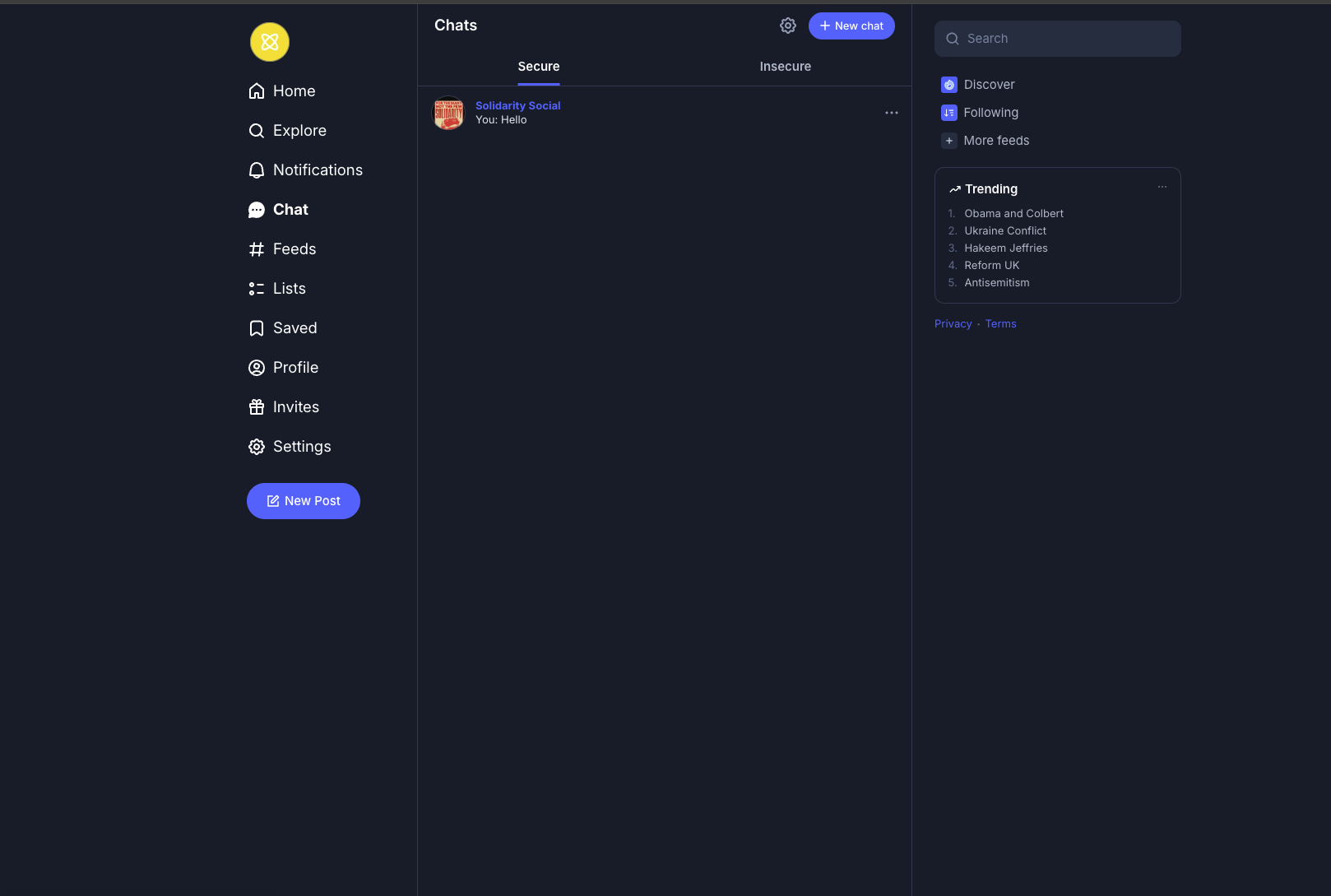 In secure conversations, the context menu lets you block or unfollow an account, or leave the conversation.
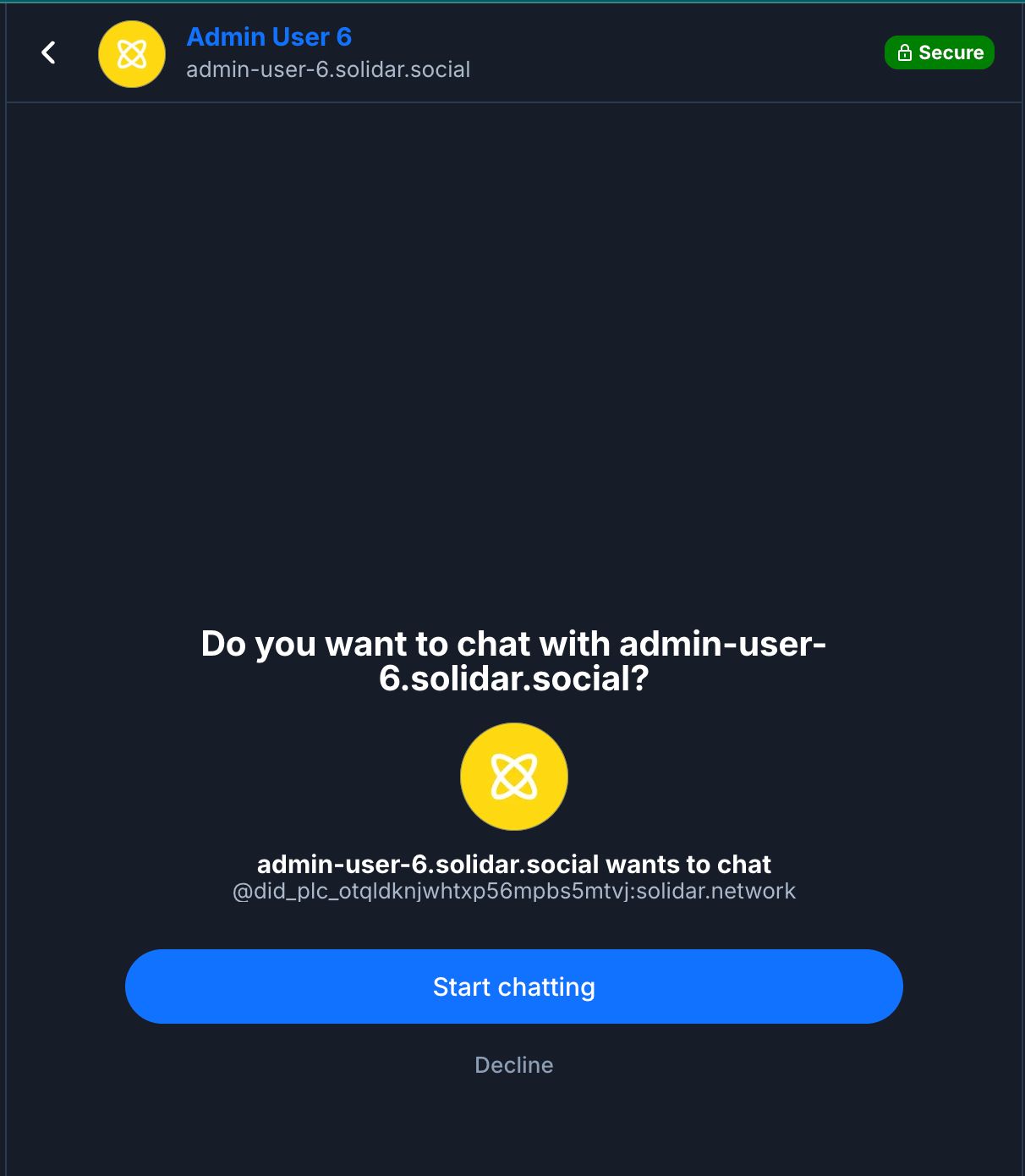
 This is what the recipient sees when they receive a chat request.
 Recipients can start chatting or decline the request.
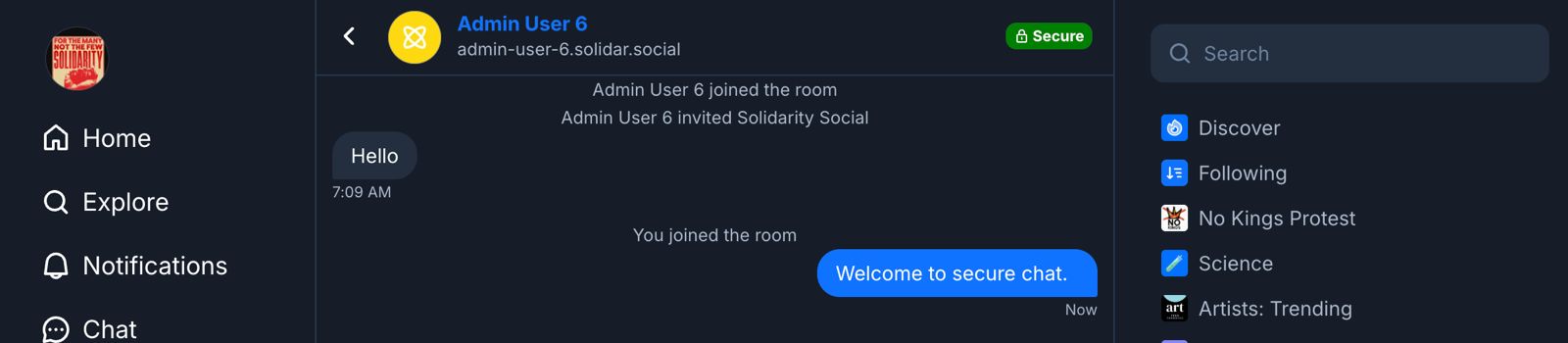
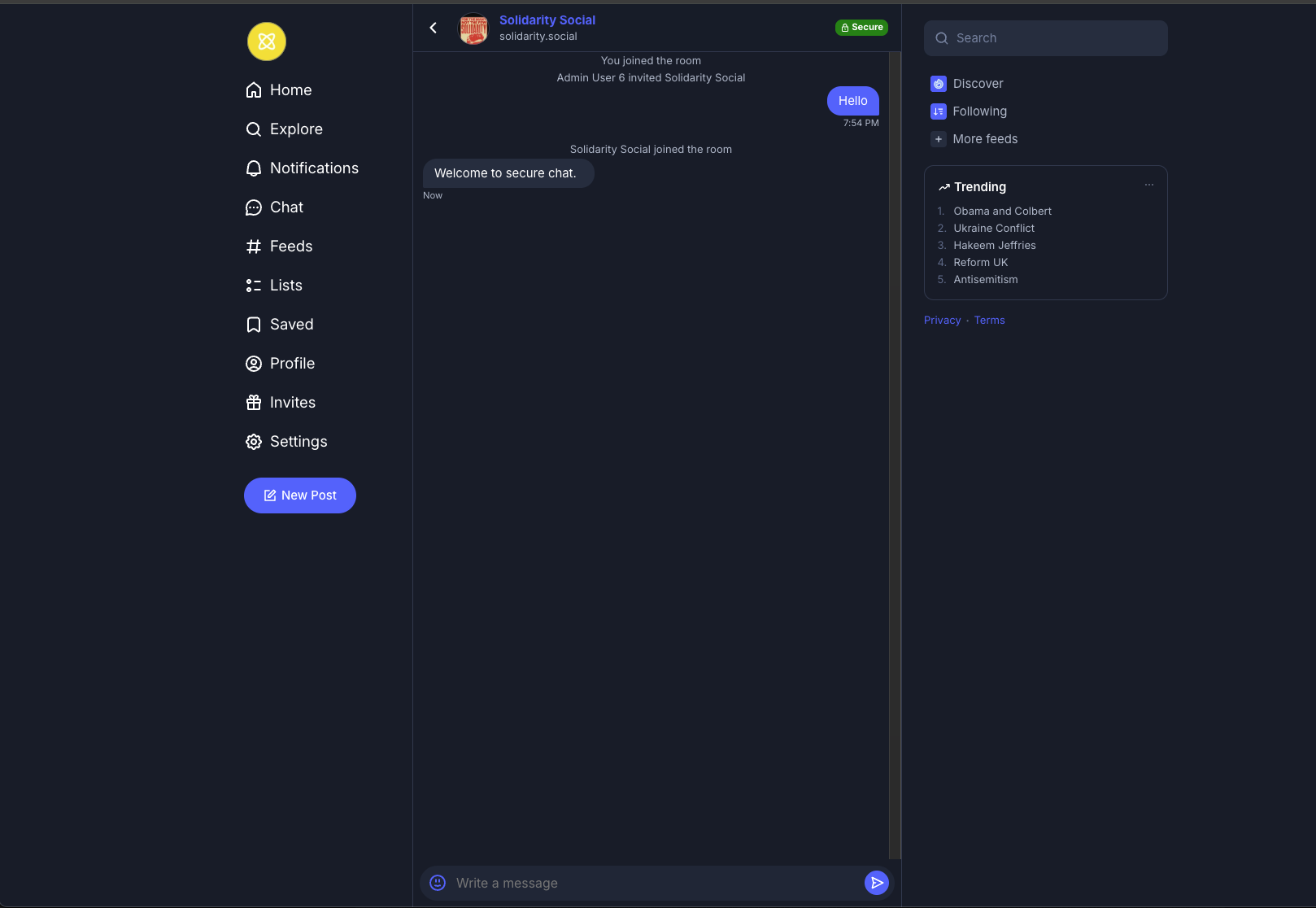
 Once the request is accepted, you can start secure messaging.
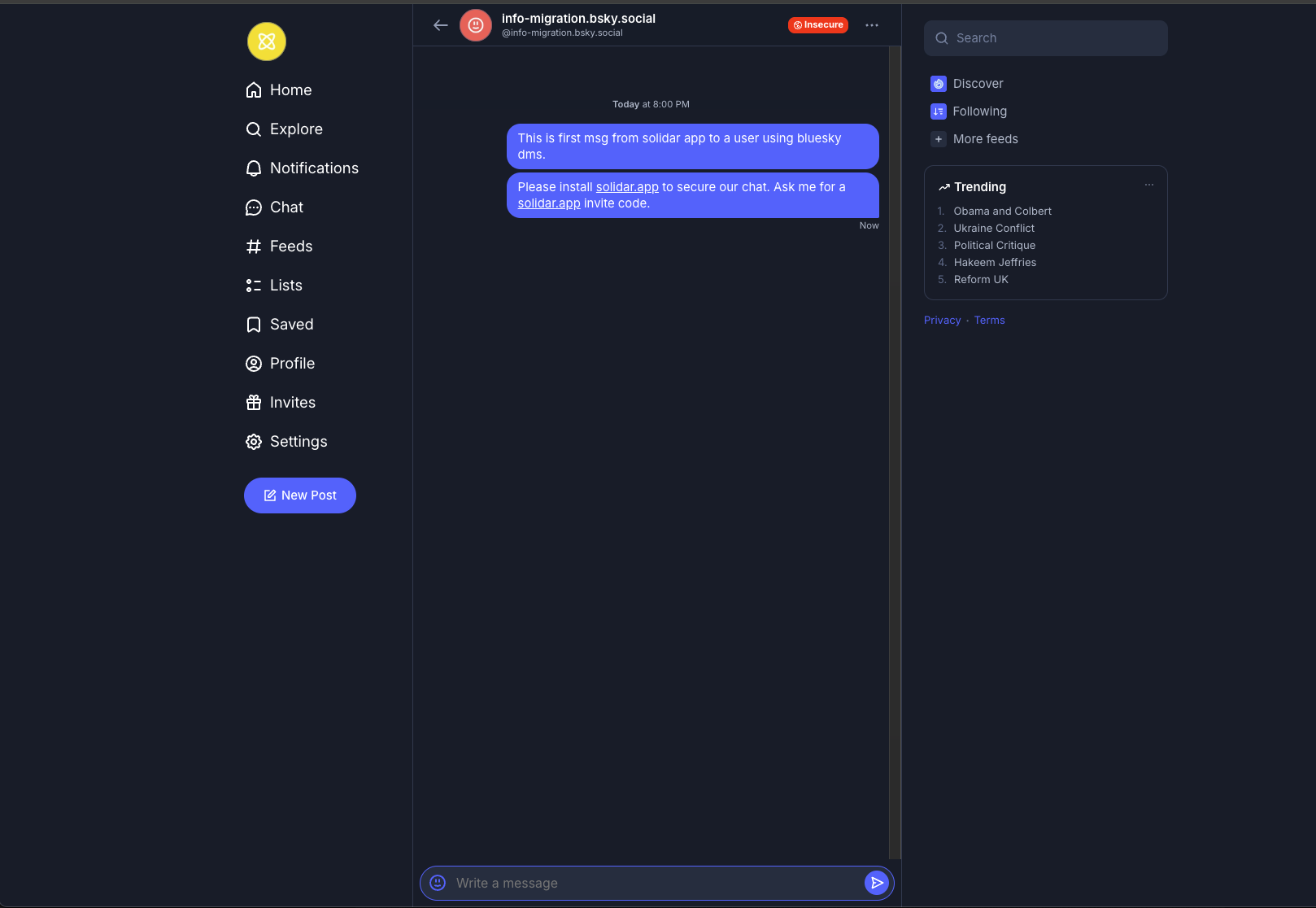
 The chat icon without a shield indicates standard Bluesky messaging, which is not encrypted. This feature is available between Solidar users and Bluesky users.
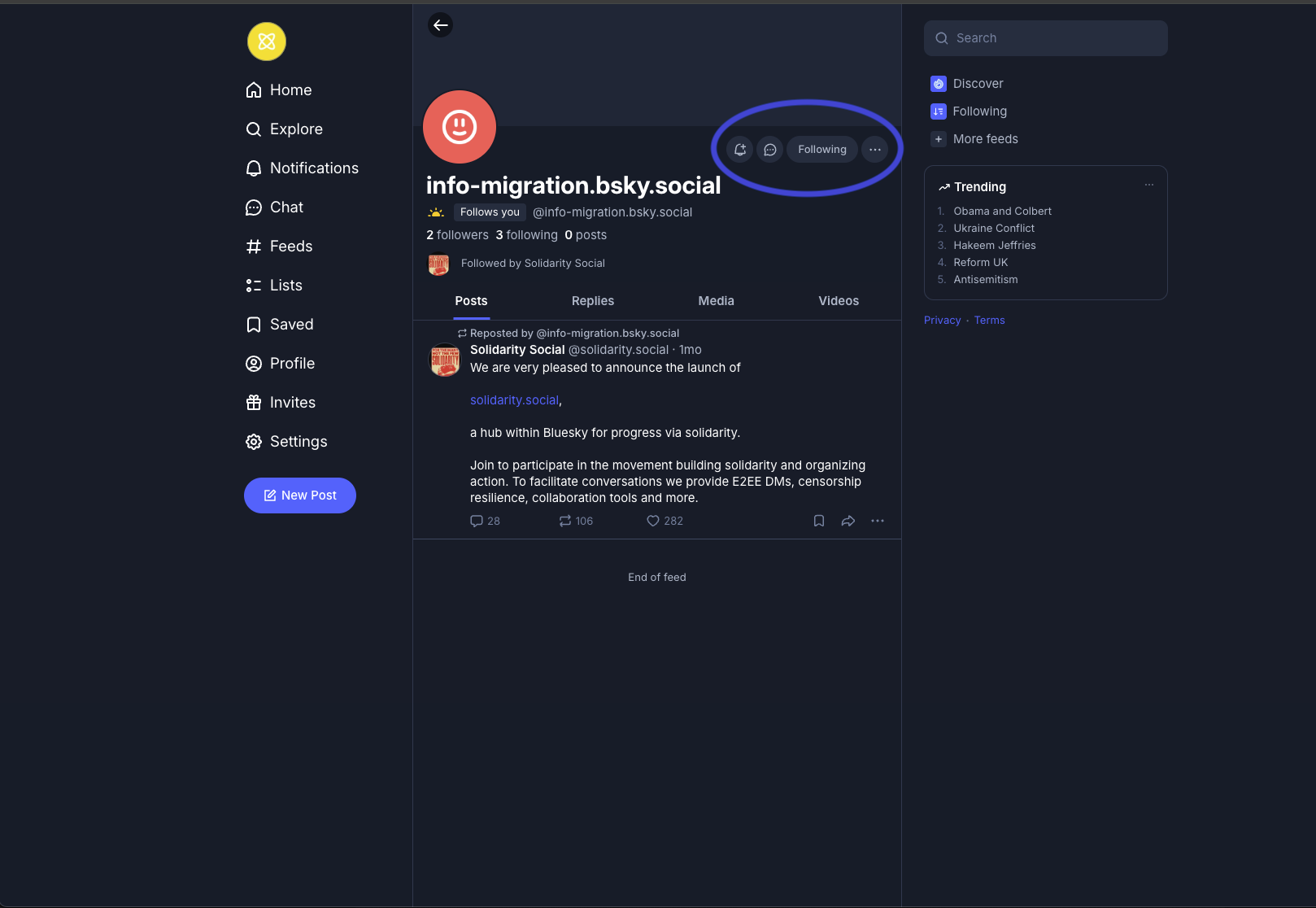 The first time you message a Bluesky user, we add a note suggesting they install the Solidar app.
4. Using matrix clients to access secure messagings
You can create a verified session on another device by signing in with a QR code using your phone. Additional devices can then be verified by confirming your identity from your phone.
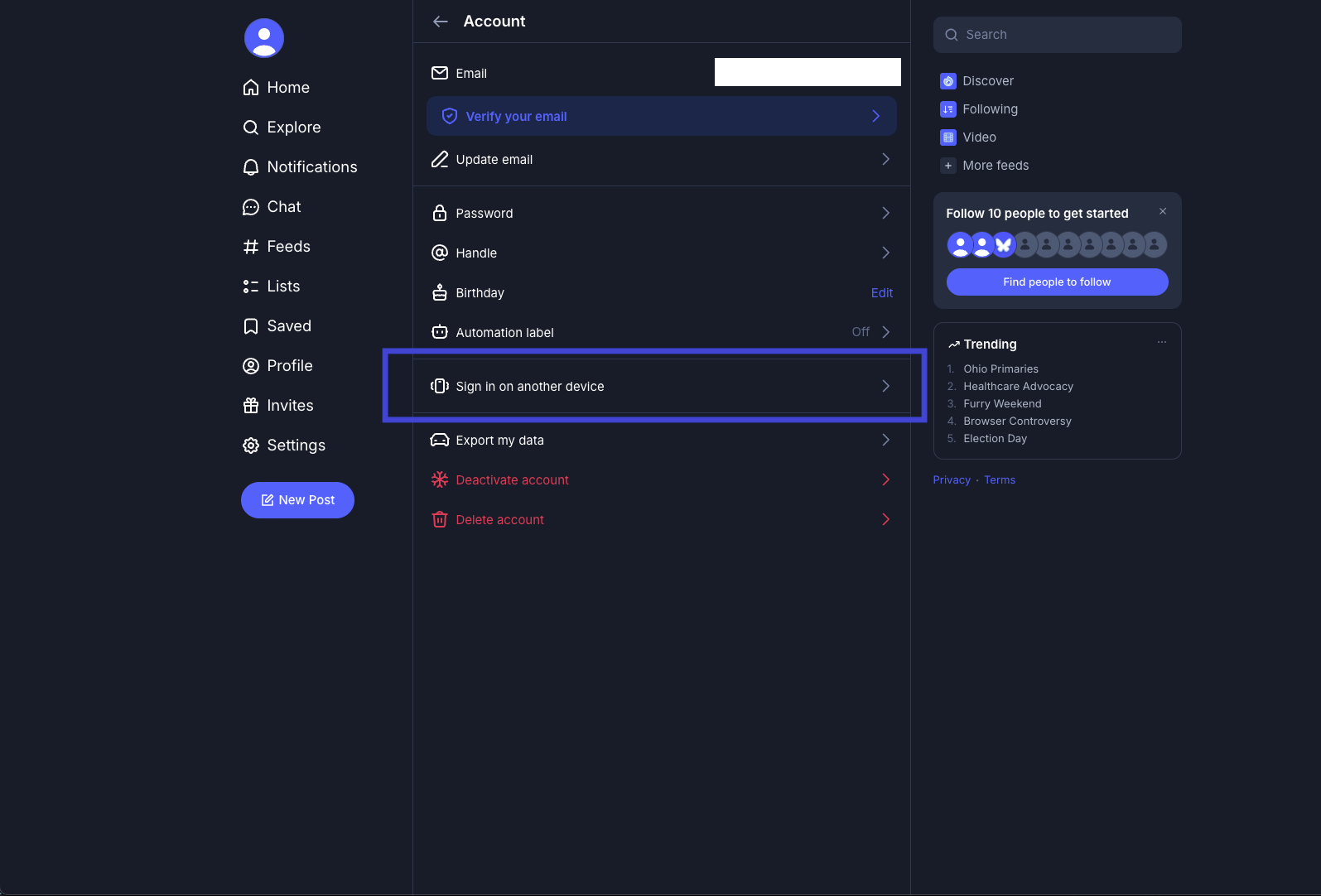
Go to Sign in on another device from Account Settings
Install Element X on iPhone / iPad (iOS)
- Open the App Store
- Search for Element X
- Tap the app: Element X
- Tap Get → Install
- Wait for download to finish
- Open the app
Official App Store page: Element X for iPhone/iPad
Install Element X on Android
- Open Google Play Store
- Search for Element X
- Open: Element X
- Tap Install
- Wait for installation
- Open the app
Official Google Play page: Element X for Android
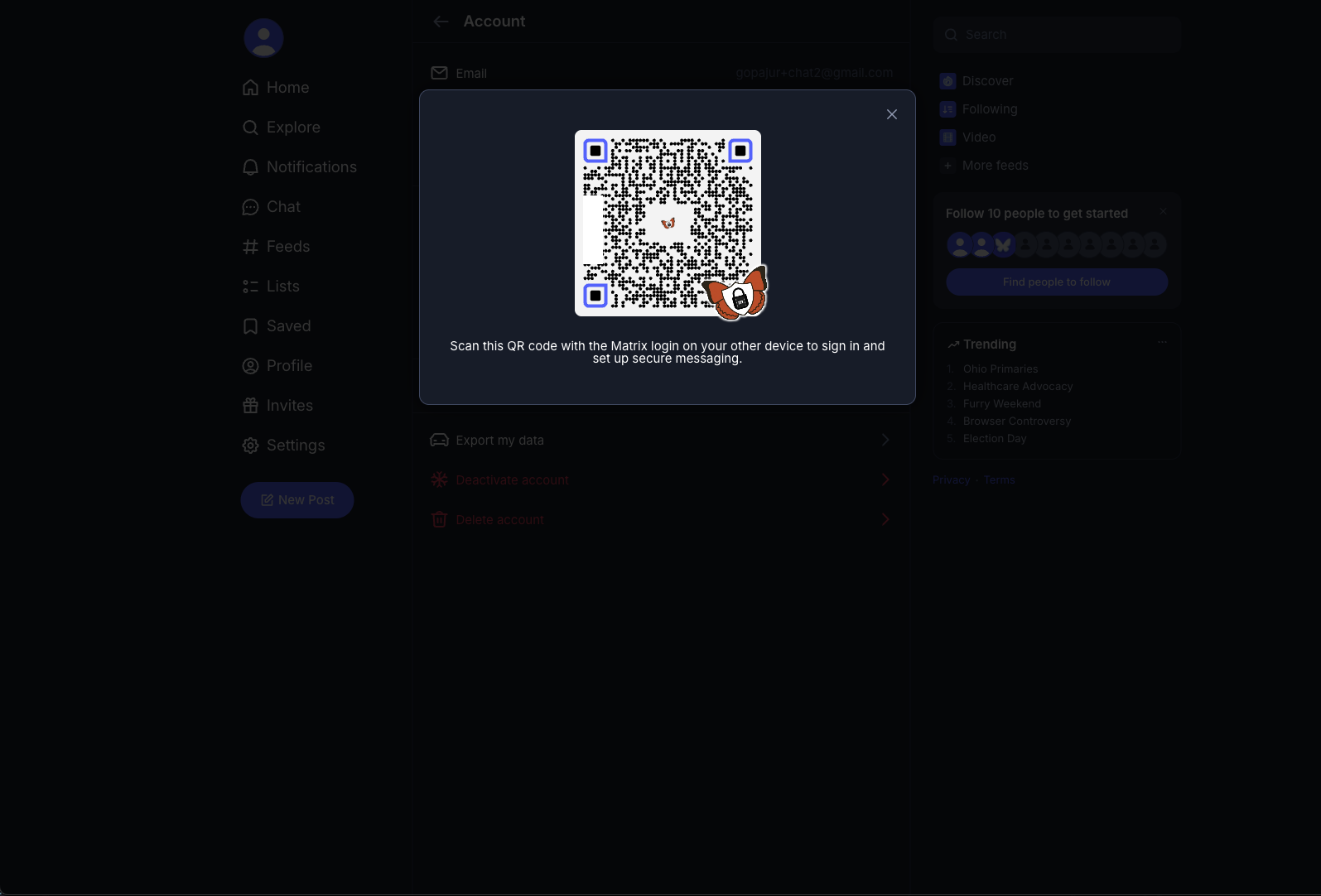
Scan this QR code on Element X app in you phone.
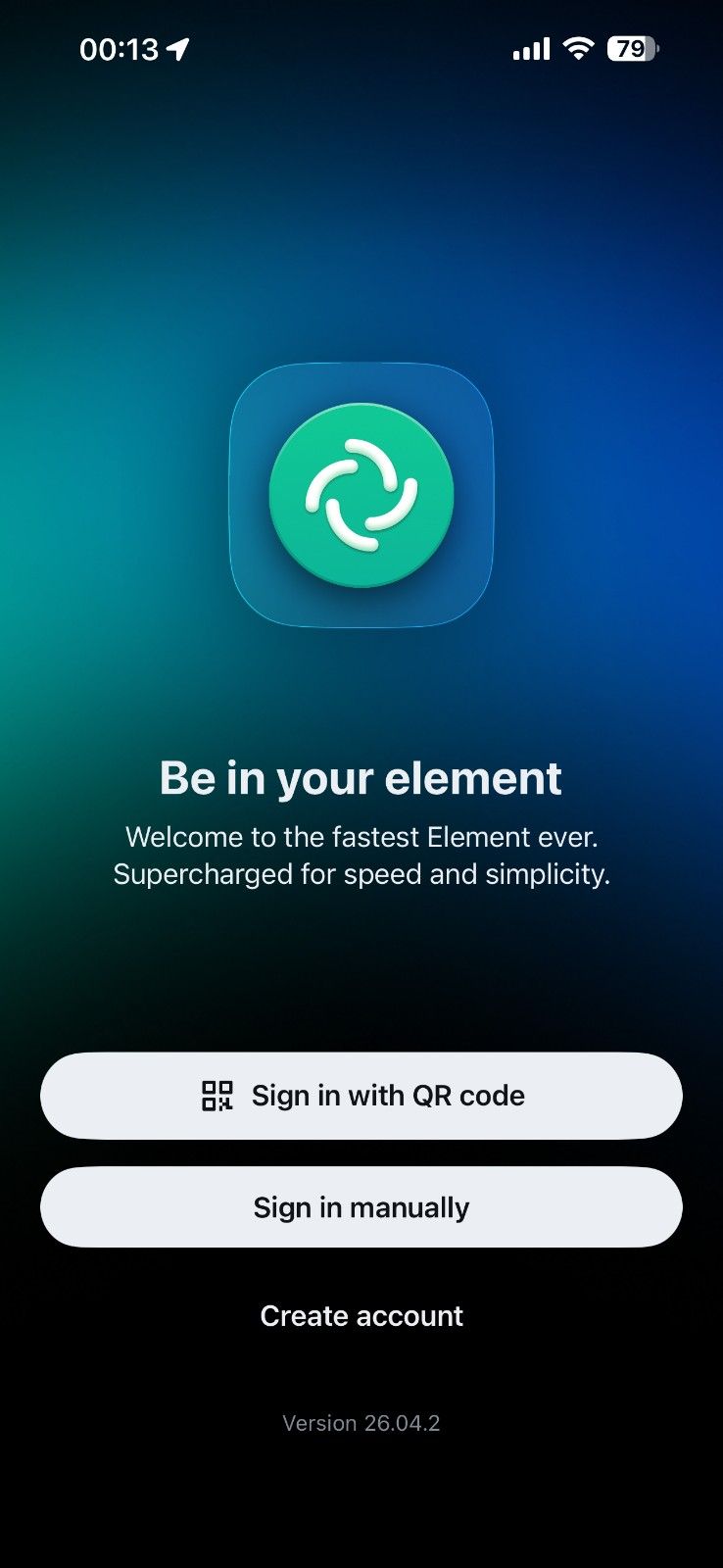
Select Sign in with QR code and verify the codes shown on both devices. Once completed, you will have a verified session on your phone.
You can then log in to solidar.element.io
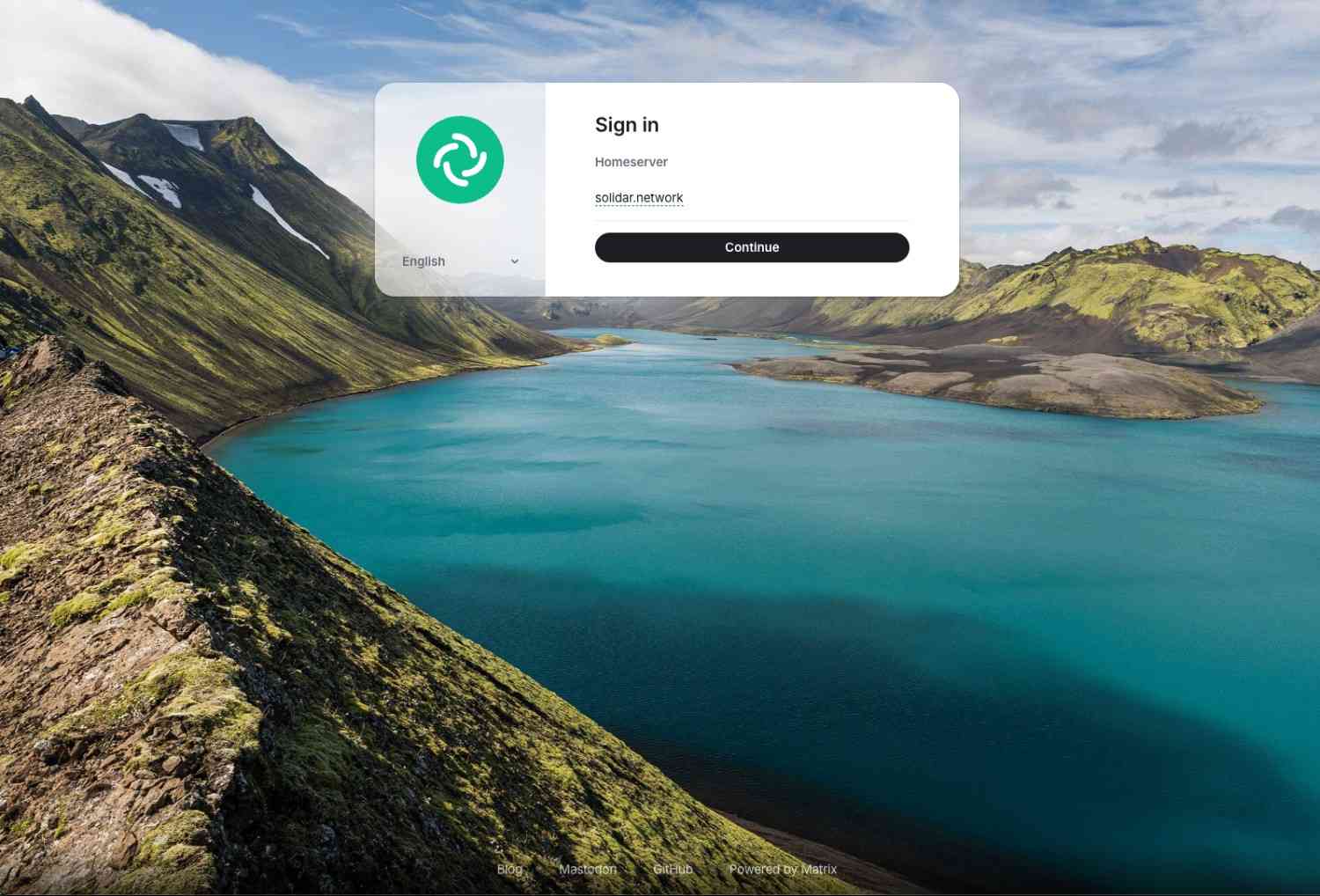
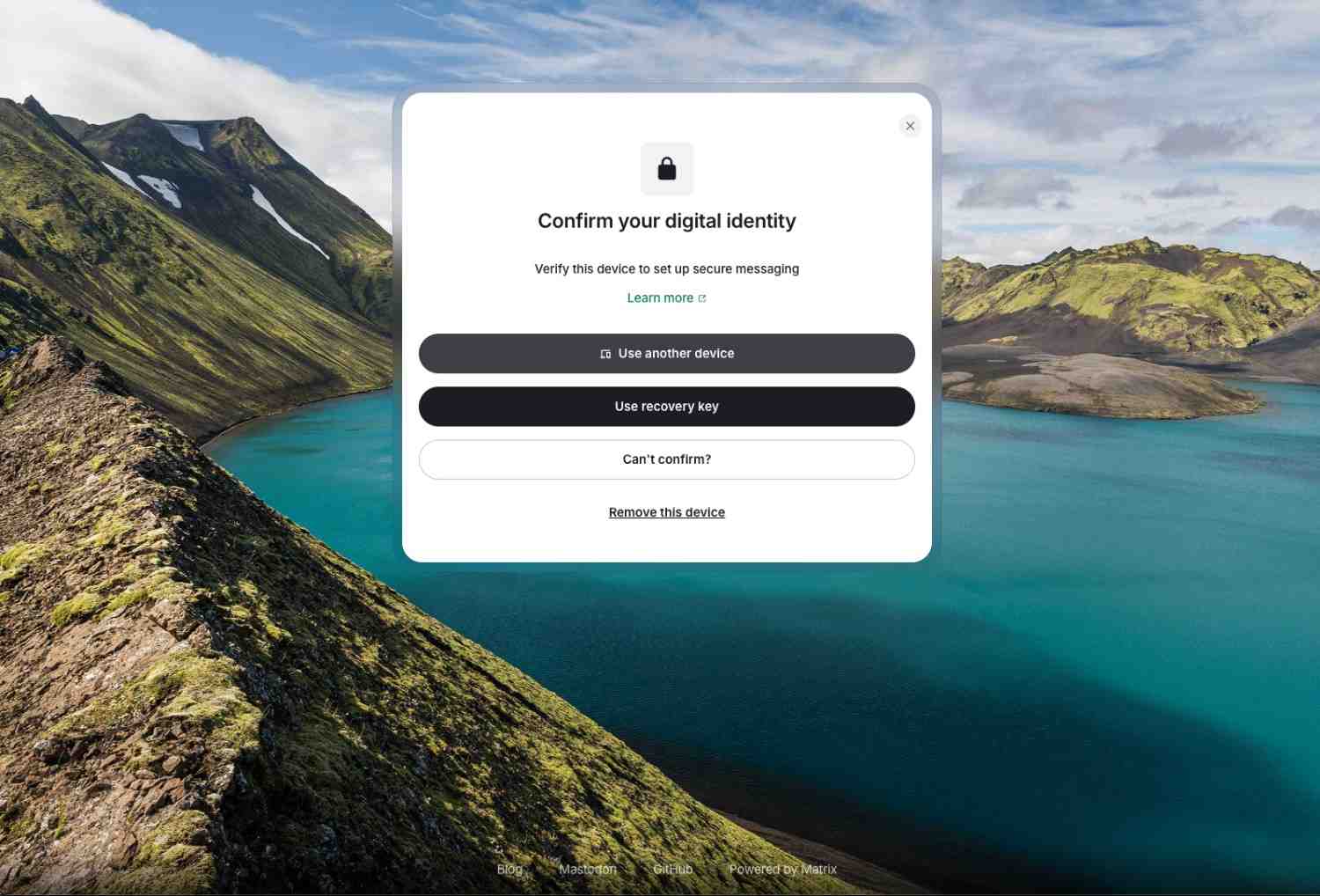
Finally, confirm your identity from your phone to establish a verified session.
5. Guide on installing mobile app
Install on iPhone / iPad (Safari)
Important: On iOS, PWAs can only be installed using Safari.
Step-by-step
-
Open Safari on your iPhone or iPad.
-
Go to: Solidar App
-
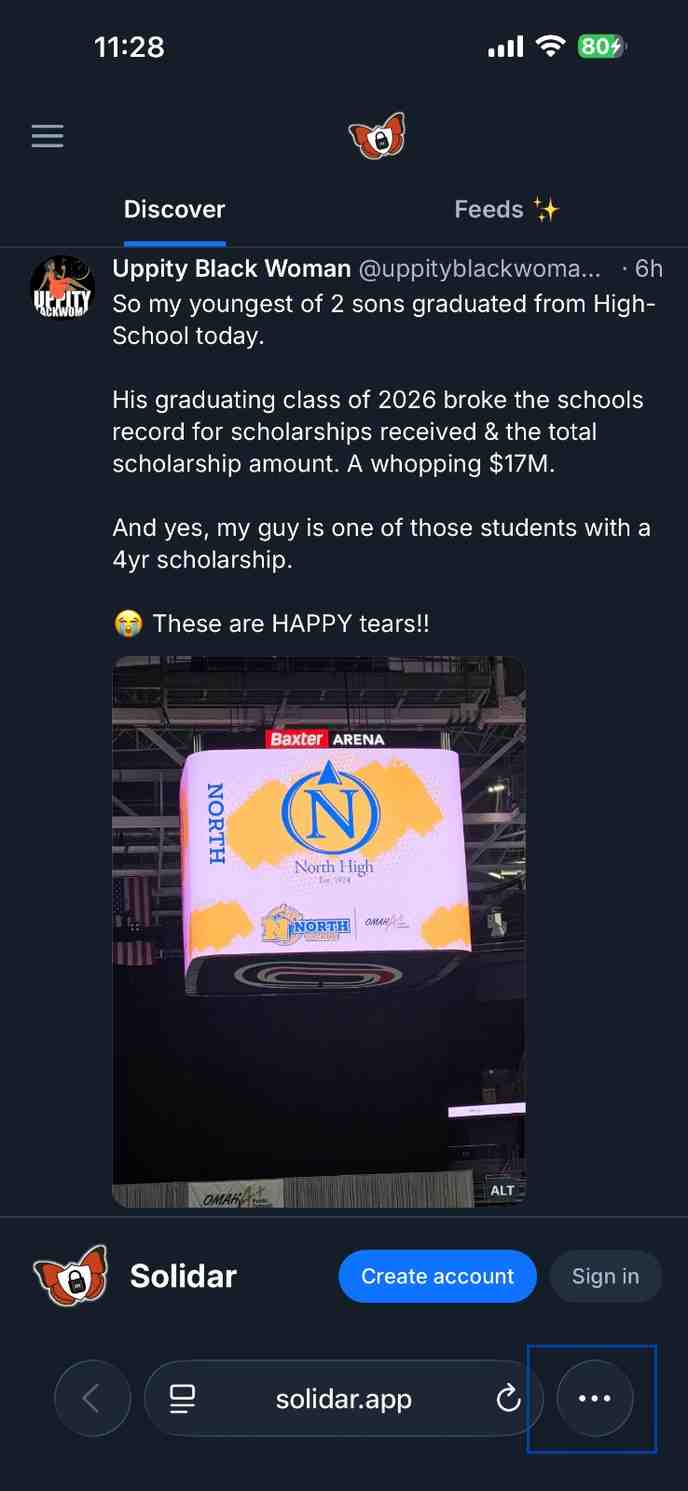
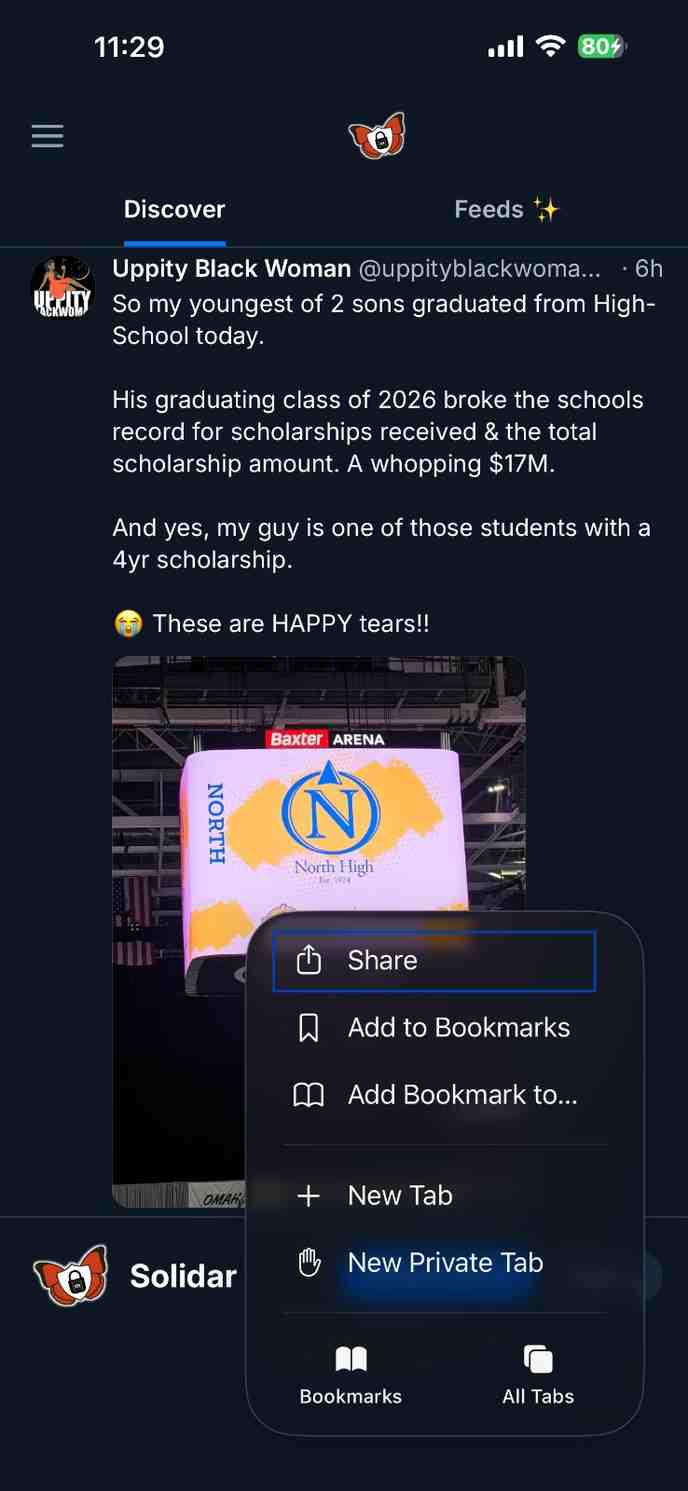
Tap the Share button (square icon with an upward arrow).
-
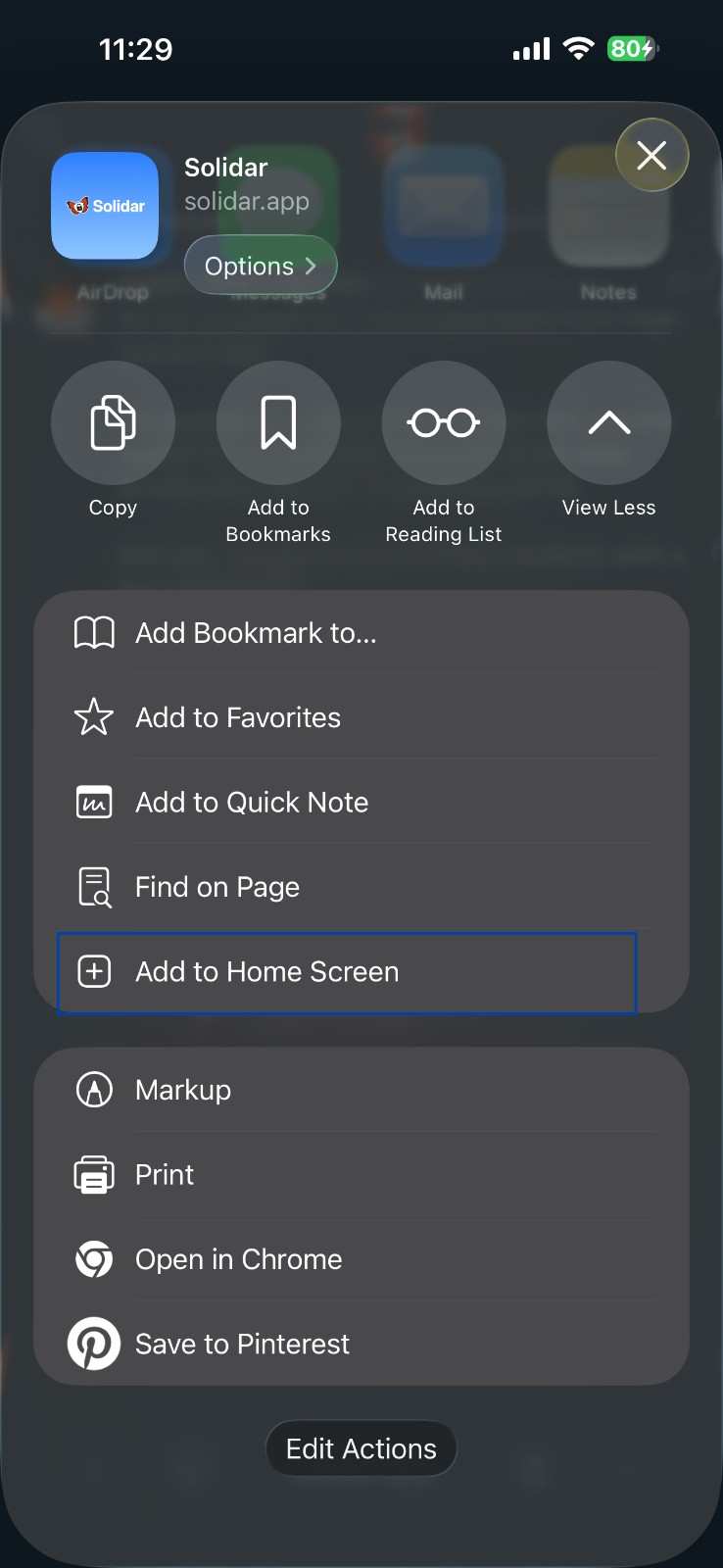
Scroll down and tap Add to Home Screen.
-
Optionally rename the app to Solidar.
-
Tap Add in the top-right corner.
-
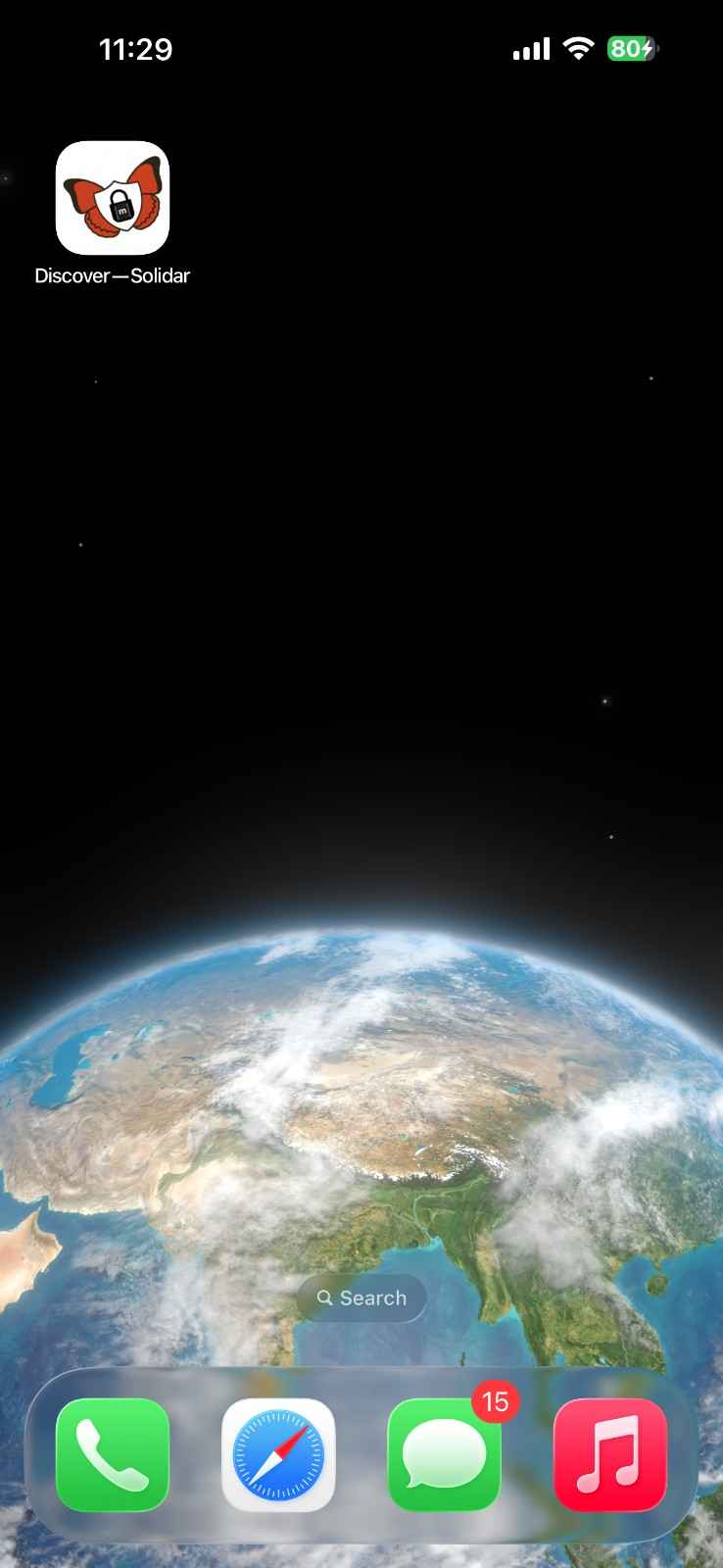
The Solidar app icon will now appear on your home screen.
Open the App
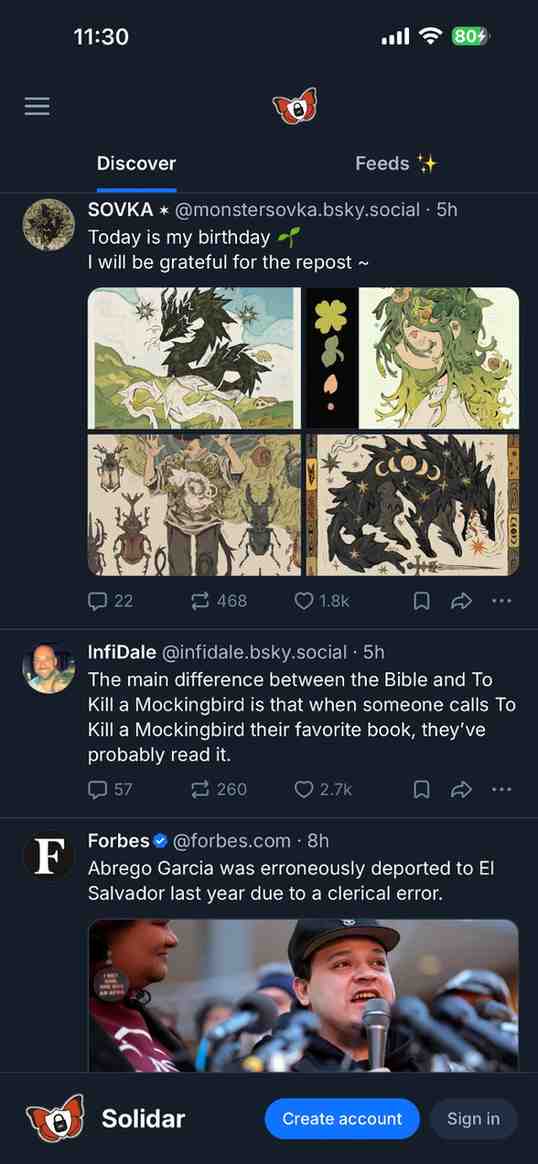
• Tap the Solidar icon from your home screen.
• The app launches in full-screen mode like a native app.
If “Add to Home Screen” Does Not Appear
• Make sure you are using Safari, not Chrome or Firefox on iPhone.
• Reload the page and try again.
• Ensure private browsing mode is disabled.
Install on Android (Chrome)
Step-by-step
- Open Google Chrome on your Android phone.
- Visit: Solidar App.
- Wait a few seconds.
- You may see an automatic prompt:
• Install App.
• Add to Home Screen. - Tap Install.
If no prompt appears
- Tap the three-dot menu (⋮) in the top-right corner.
- Select:
• Install app.
or
• Add to Home screen. - Tap Install or Add to confirm.
- The Solidar app icon will appear on your home screen or app drawer.
Open the App
• Launch Solidar directly from your home screen.
• It will open like a normal mobile application.
6. Guide on using invite code
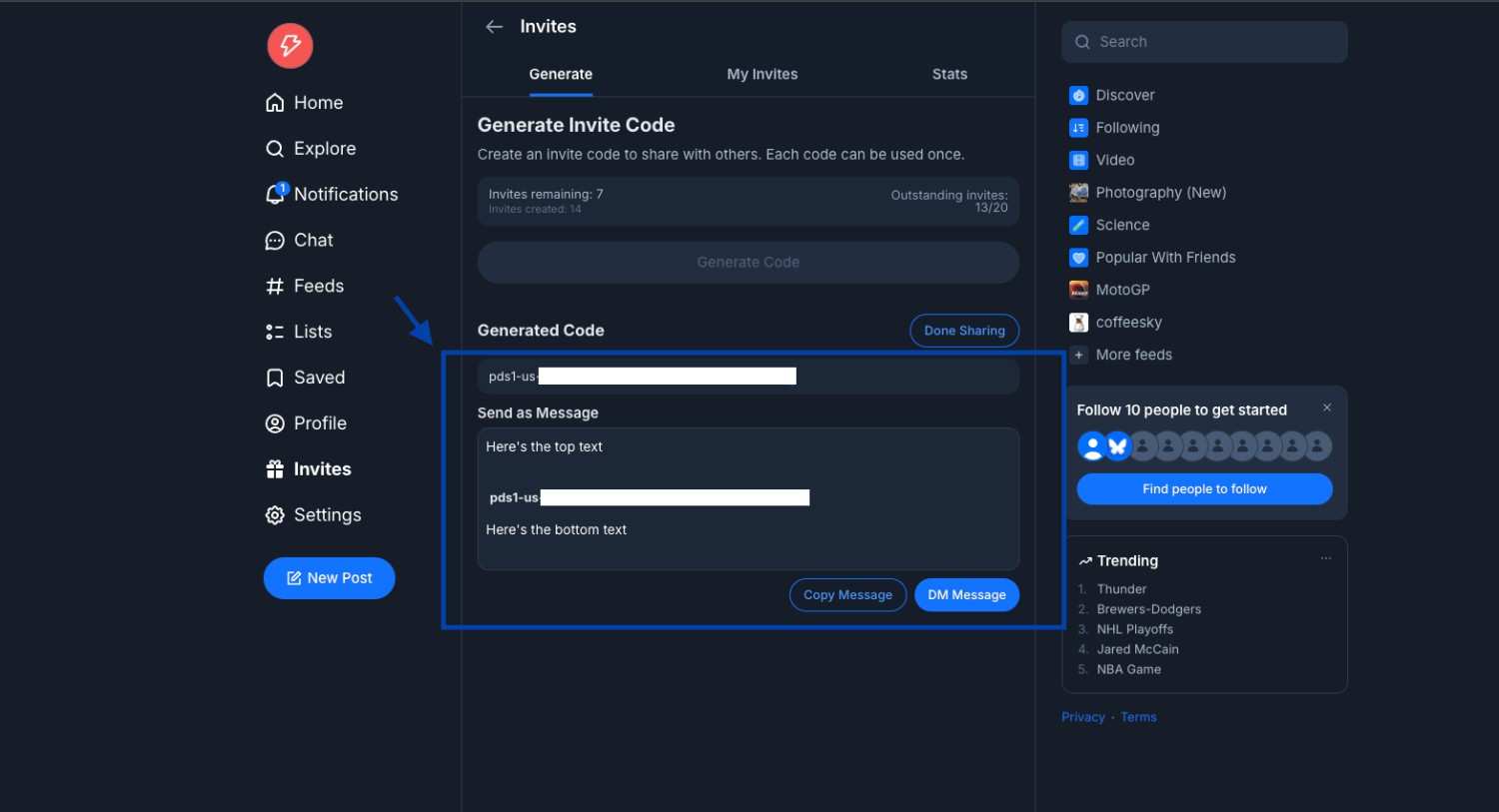
Gift icon on left panel brings up Invites page, where you can Generate code.
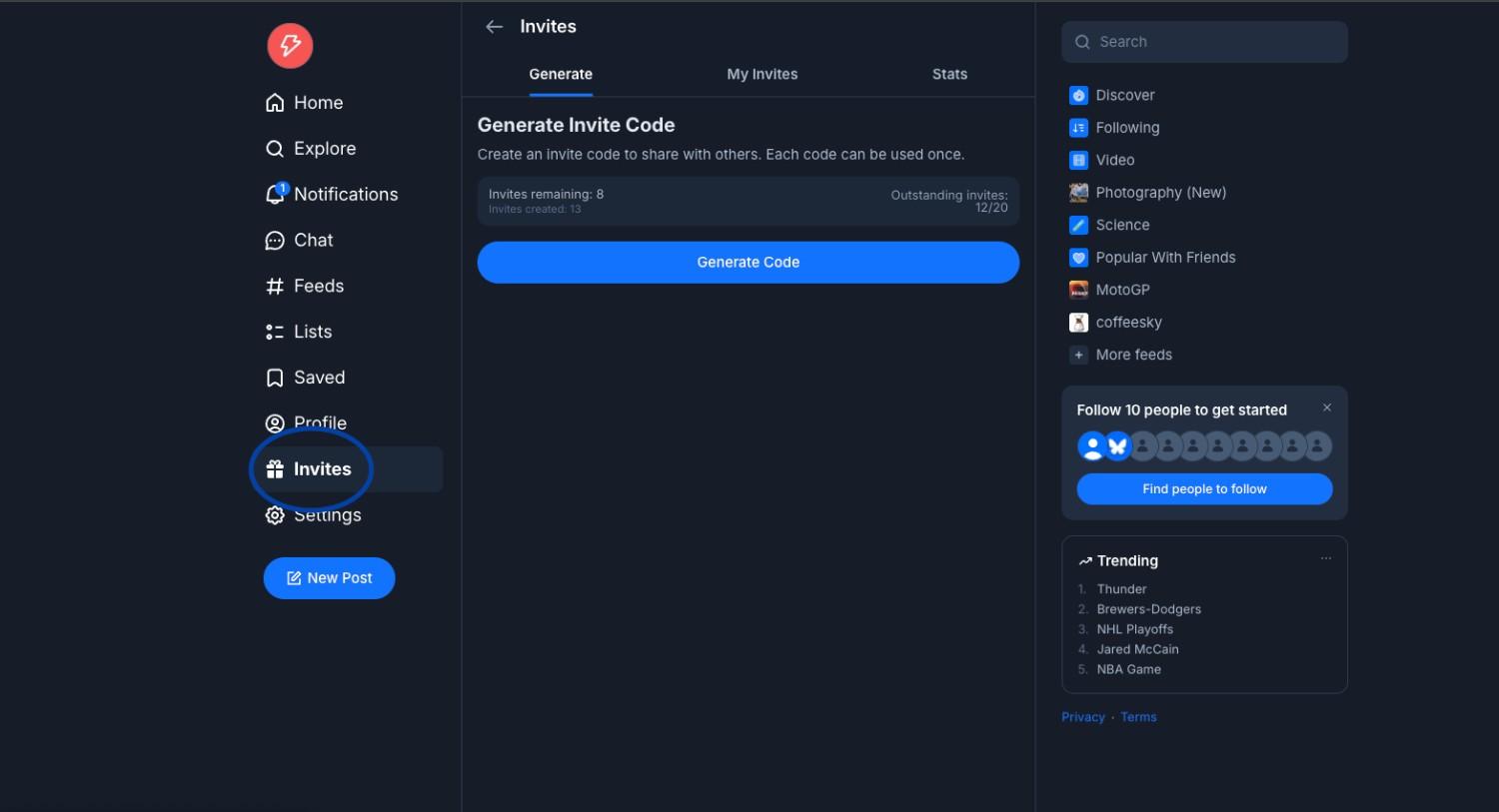 Generated code can you shared via DM or manually via copying it over, if shared manually press Done Sharing, provide details and save it, which will then allow you to Generate another code.
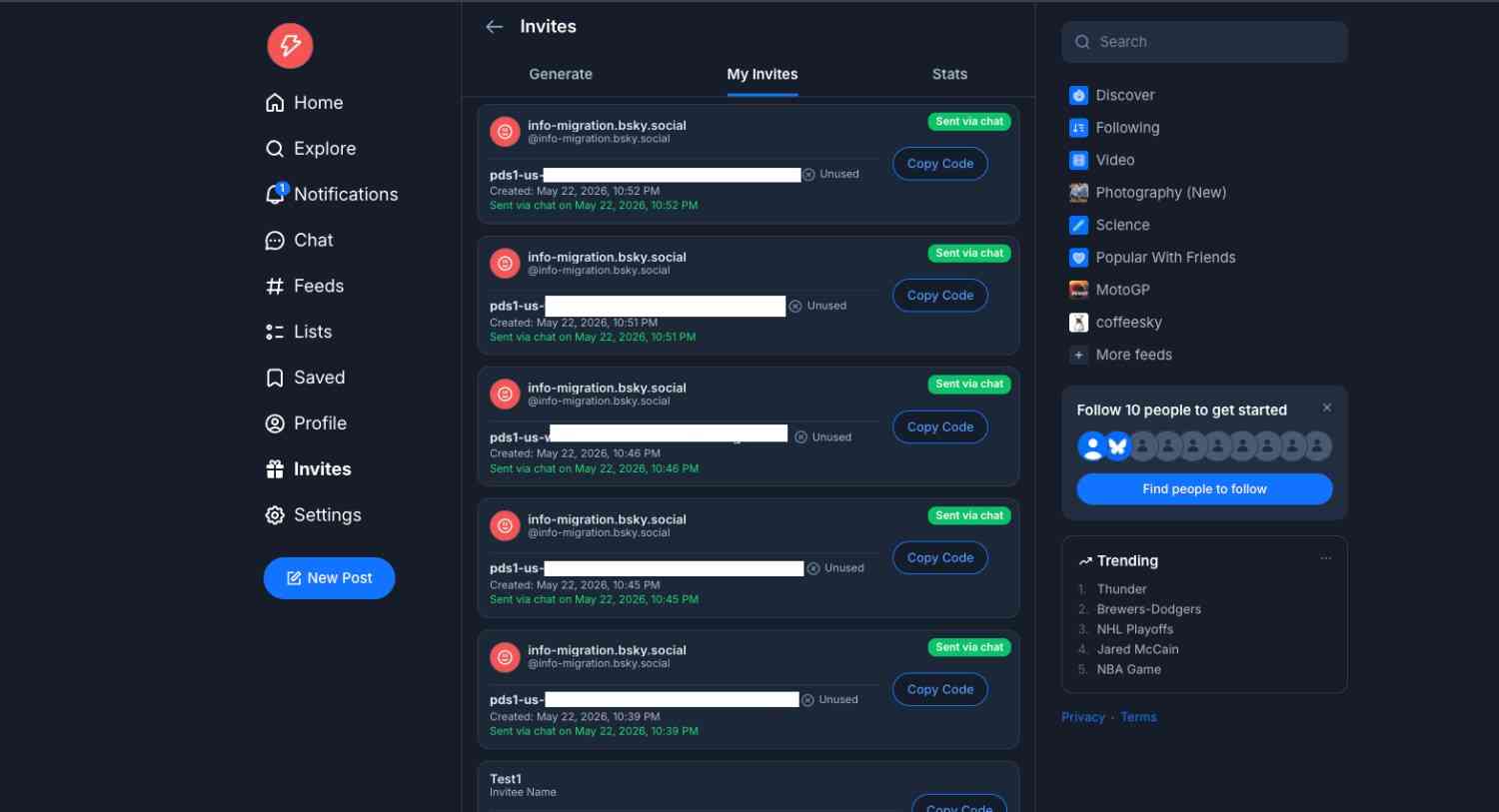
 You can keep track of invite code that you generated in My Invites tab.
You can also receive invite codes via DM.
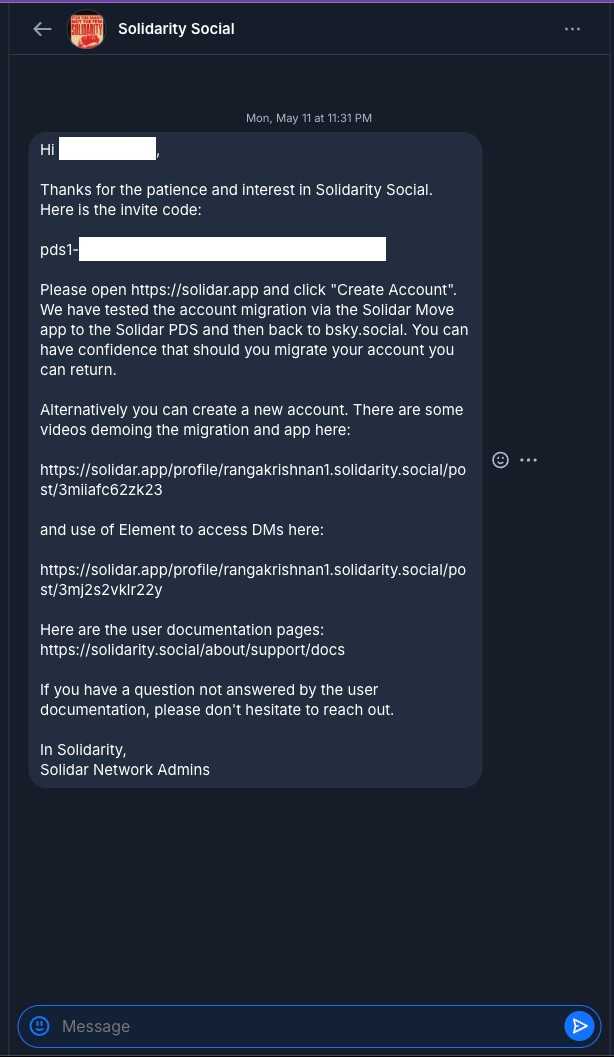 You can then use that invite code while migrating your account from Solidar Move, or create a new account using the invite code through the Solidar App.