Solidar Move User Guide
Last updated: May 7, 2026
This guide helps you use the Solidar Move app to
- move your account to a new provider (Account Migration)
- restore your account from a backup (Account Restore)
What This App Can Do
Account Migration
Use this when you want to move your account from your current provider to a new provider while keeping your profile and data. For example you can use this app to move from a <bsky.social> handle to the Solidar Network (i.e.to a <solidarity.social> or <solidar.social> handle) or to move from the Solidar Network to Bsky or Blacksky or Eurosky etc.
Account Restore (From Backup)
Use this when you already have a backup file and want to restore your account from the backup file.
Before You Start
General Requirements (For Migration or Restore)
- Access to the email address linked to your account
- Enough time to complete the process without closing the app
- Any login or verification details you may be asked for
Requirements for Account Migration
- Your current account must still be accessible
- You must know your current account login details
- You need a destination account or destination provider ready
- You should understand that some changes may take time to fully appear
Requirements for Account Restore
- A valid backup file created by a supported source
- Access to the account where you want to restore data
- A Rotation key
- Enough storage space (if your backup is large)
- The backup file must not be corrupted or incomplete
How to Migrate an Account
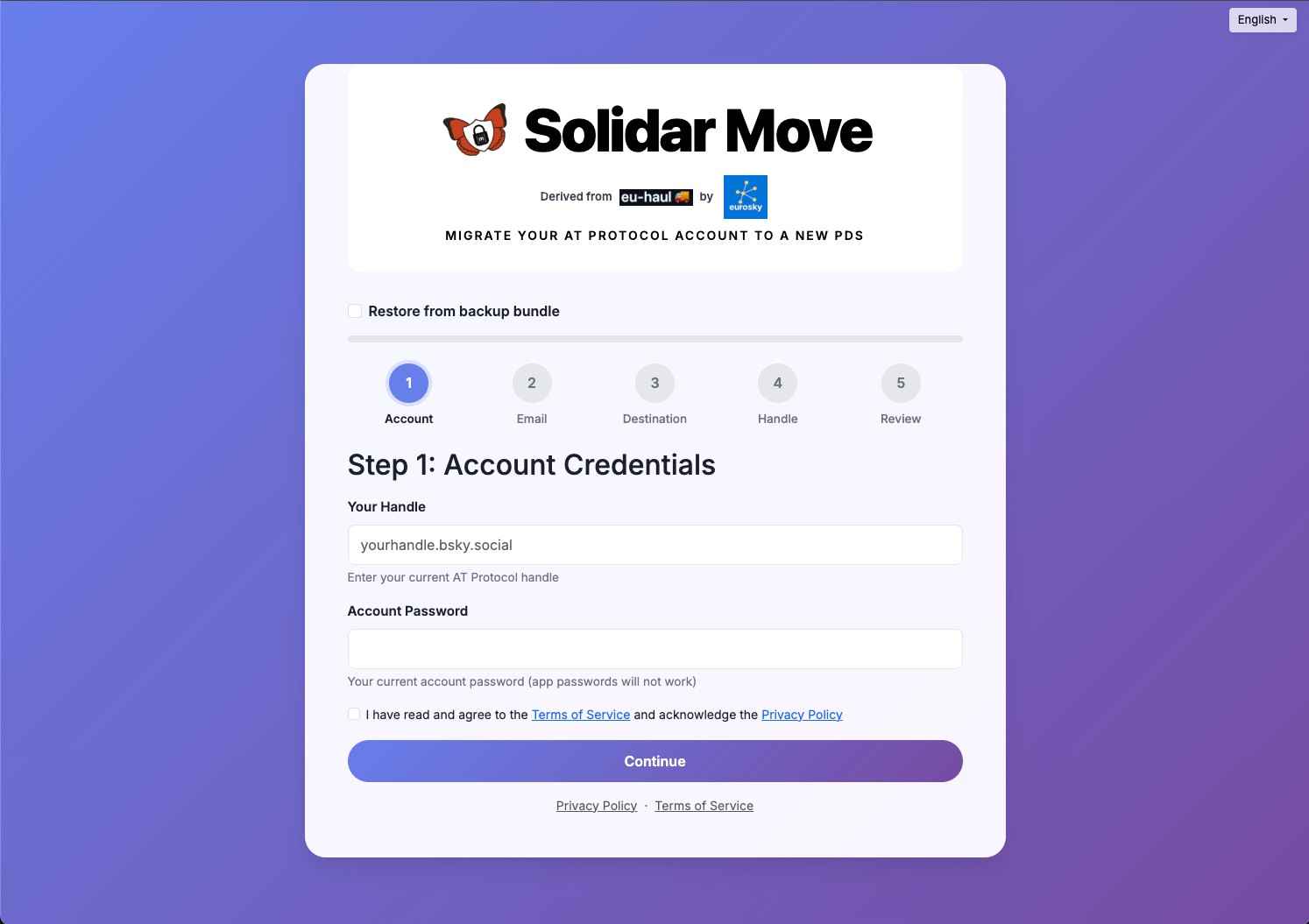
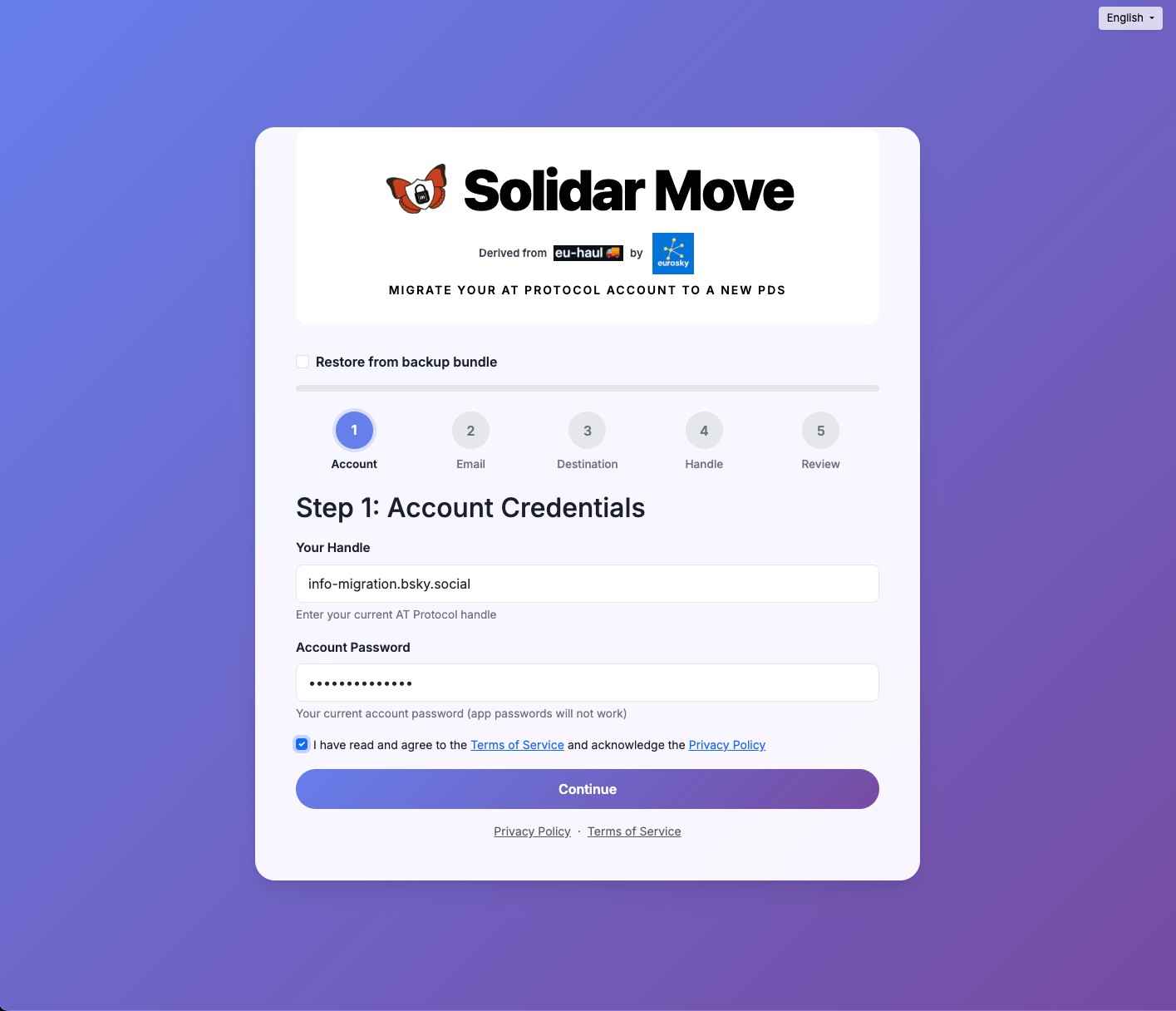
Step 1: Account Credentials
- Enter your handle.
- Enter your account password.
- Continue.
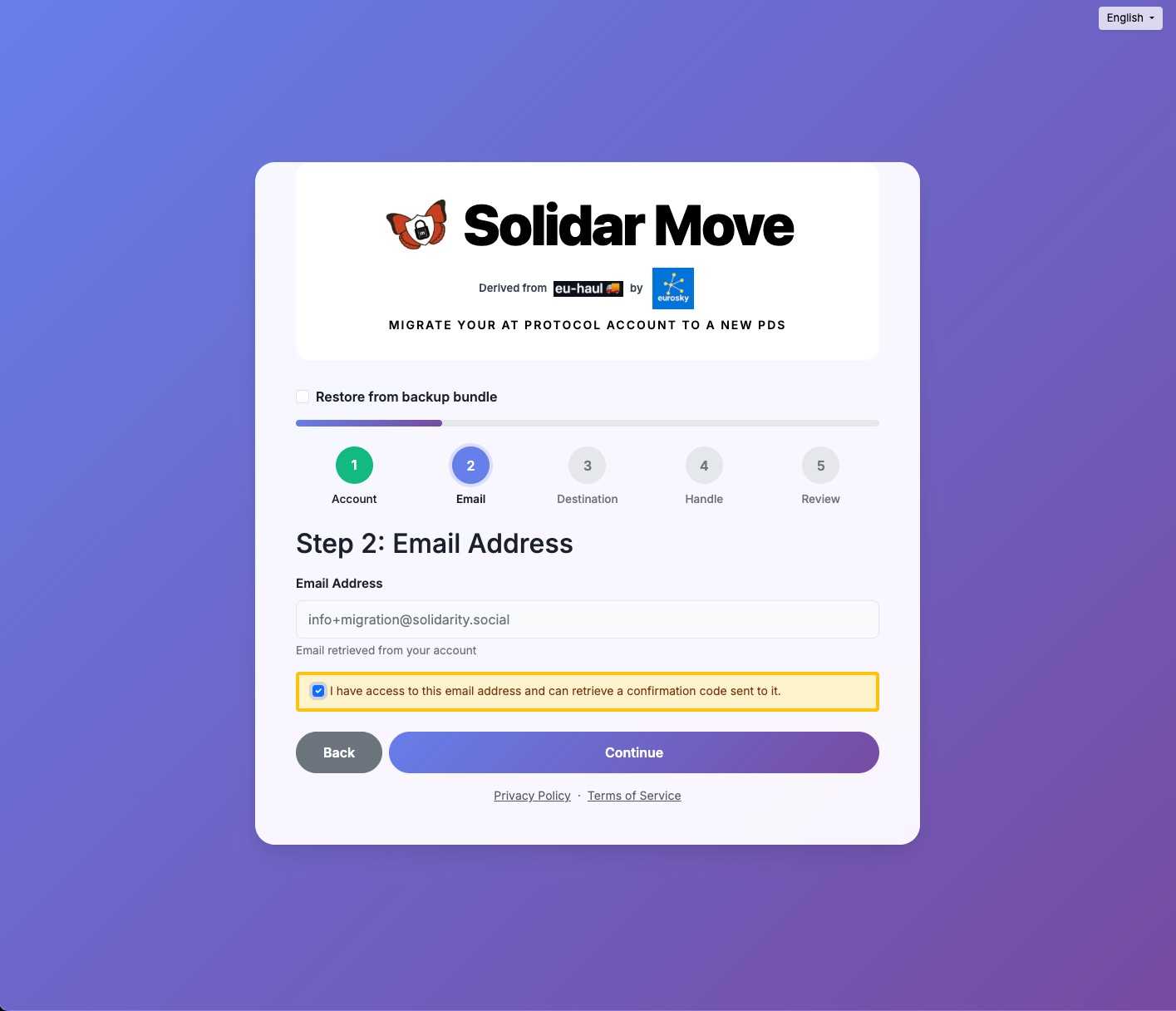
Step 2: Email Address
Confirm that you have access to the email associated with your handle to retrieve confirmation codes.
Step 3: Destination Account Details
Two options are provided:
- Migrate to a new PDS , and
- Bundle Download Only
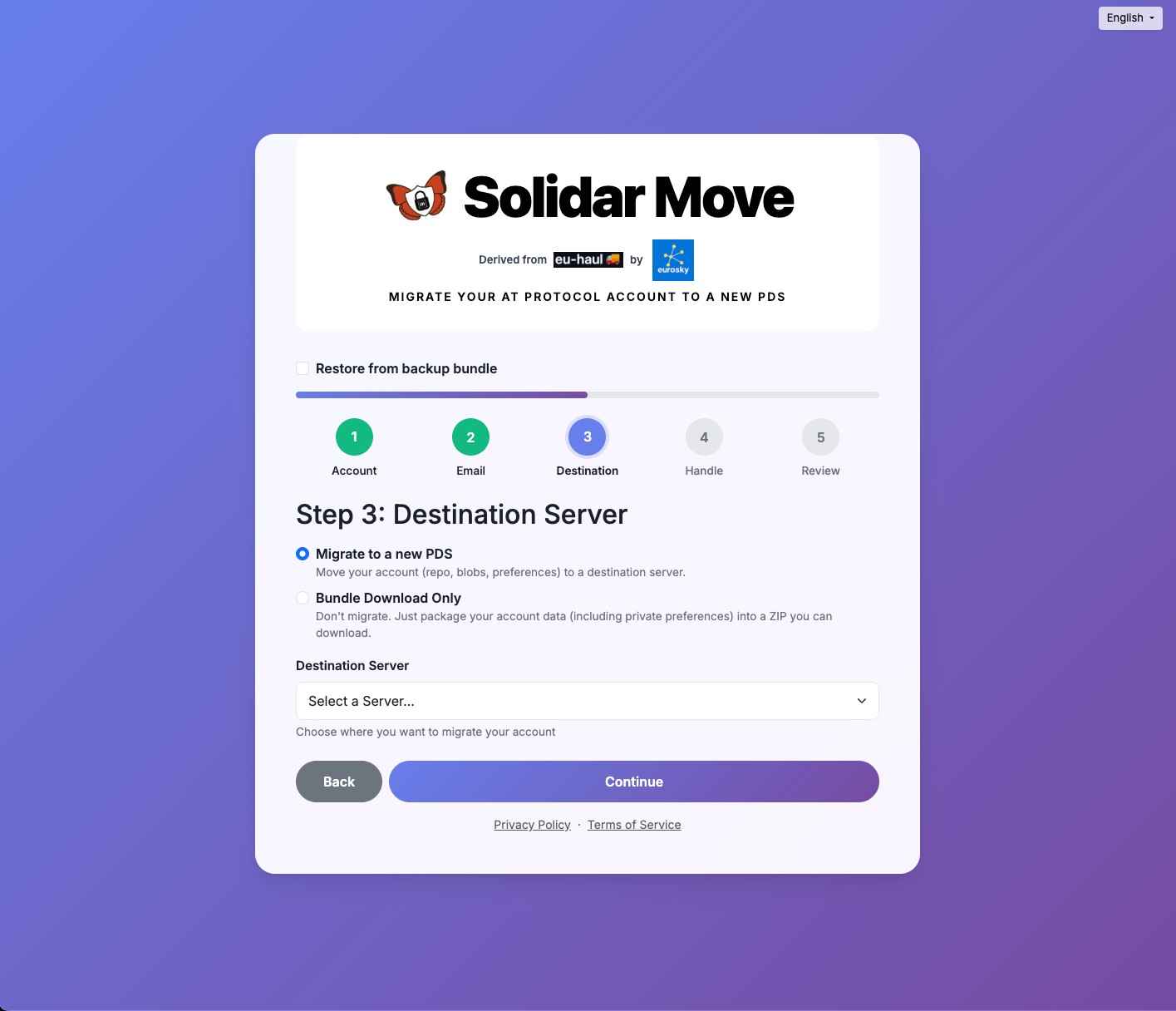
Migrate to a new PDS
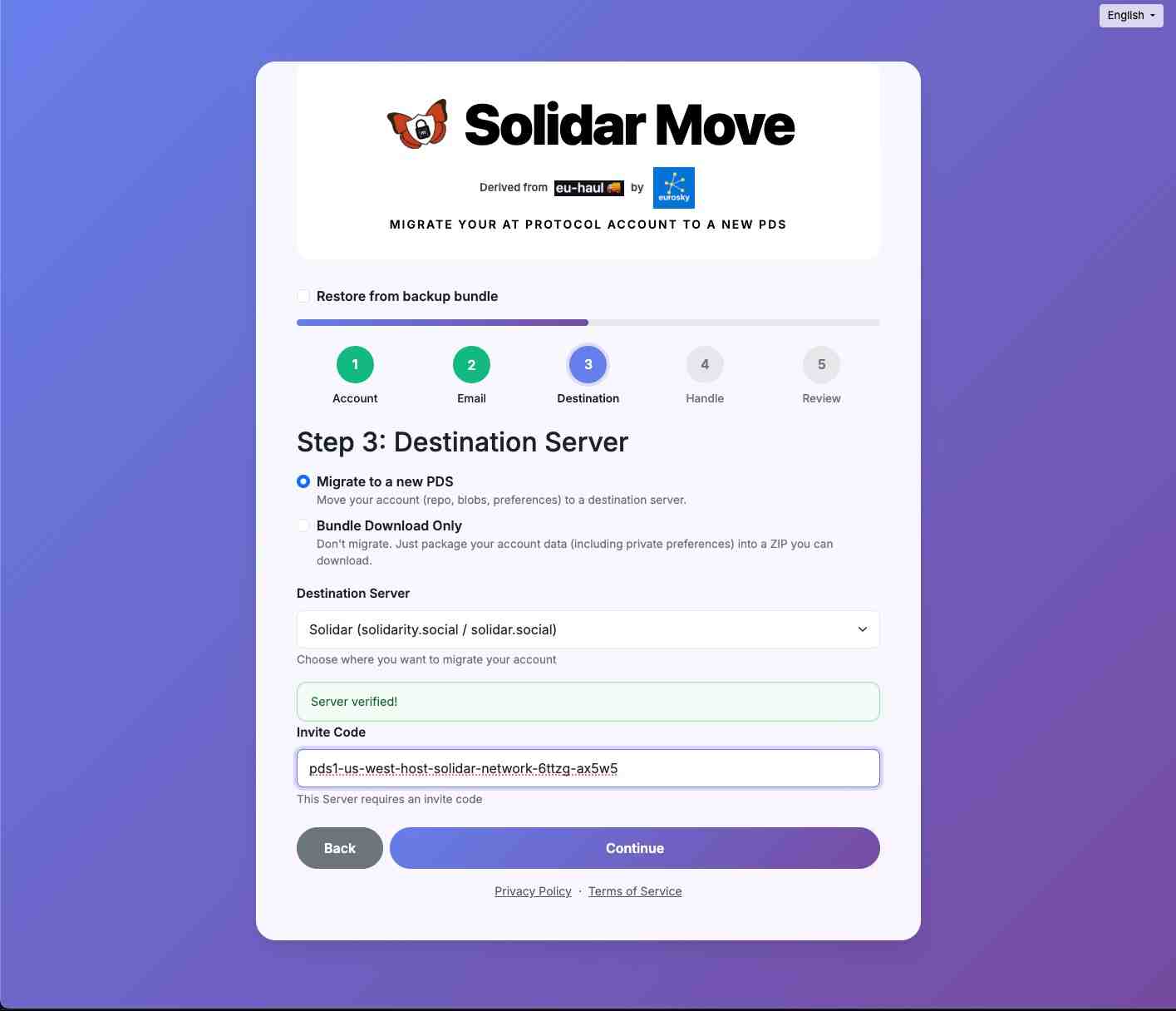
- Select destination server (i.e. Solidar)
- Enter an invite code and continue
- (optional: only if account already exists and you want to move again) if existing account is found on the destination server, provide the password for the destination account to move it back (no need for an invite code).
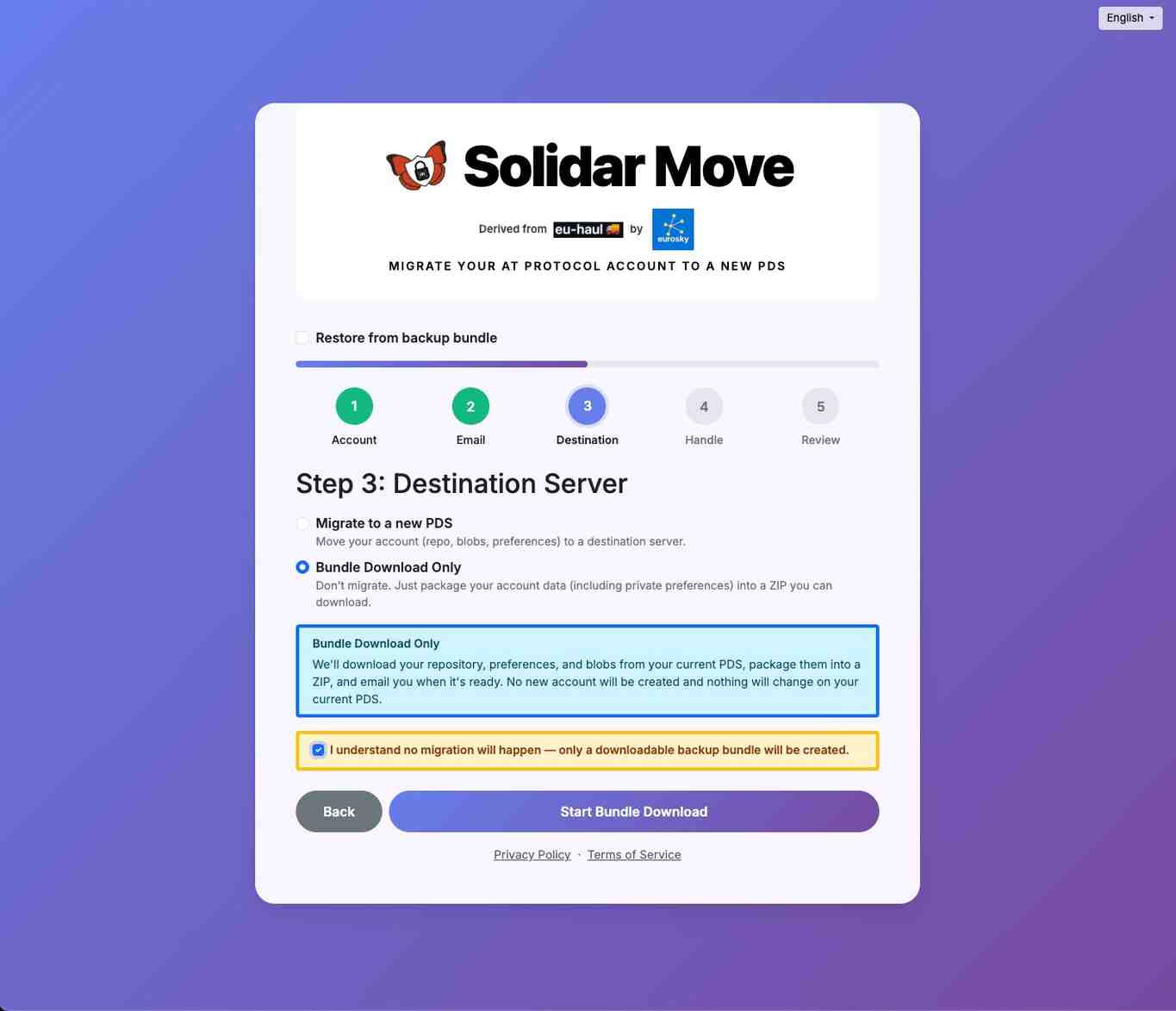
Bundle Download Only allows you to download your backup bundle
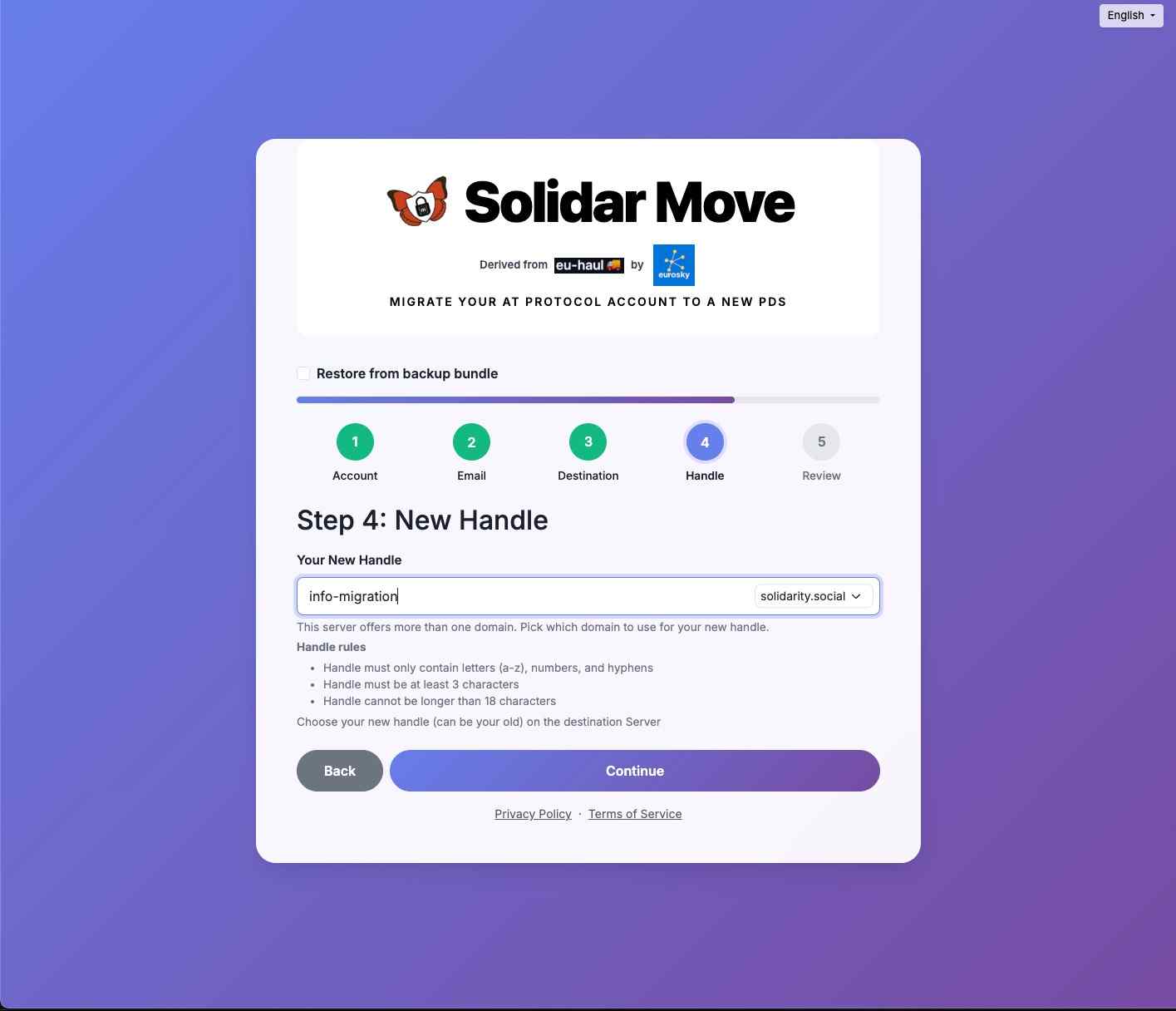
Step 4: Handle
If the account already exists, it fetches your handle associated with the destination account.
For new migration:
- Provide Your New Handle
- Continue
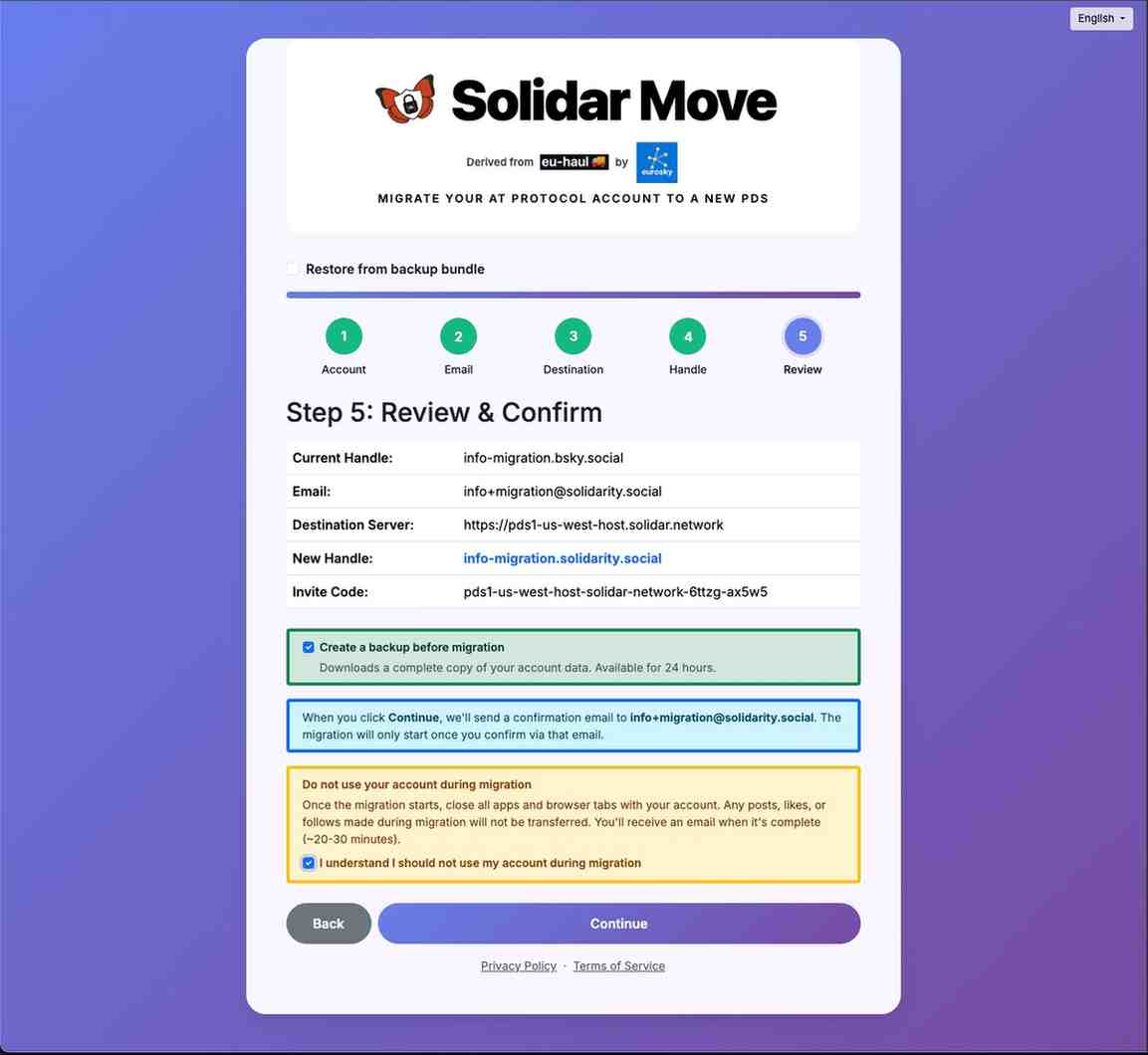
Step 5: Review
- Review and confirm your details
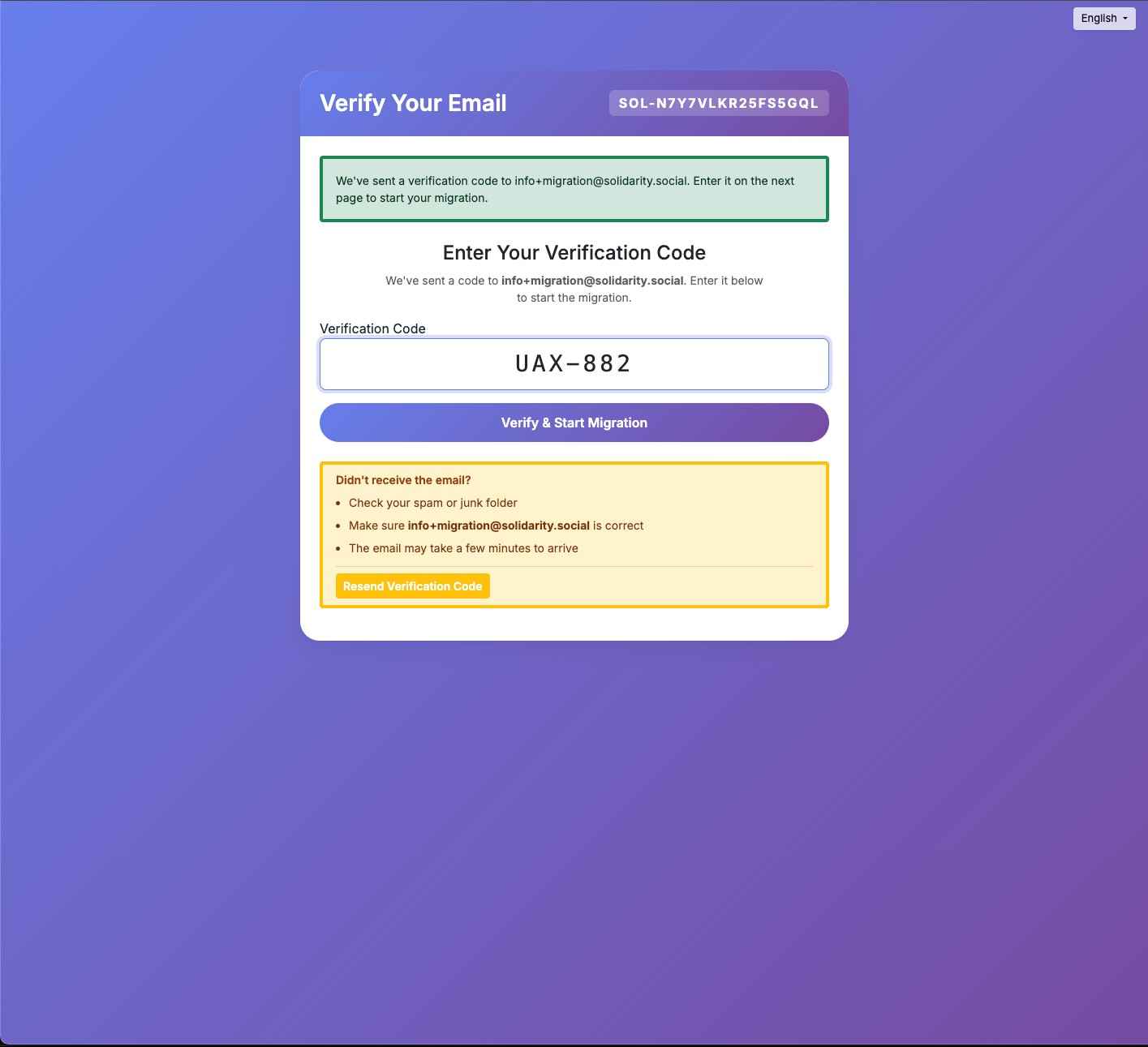
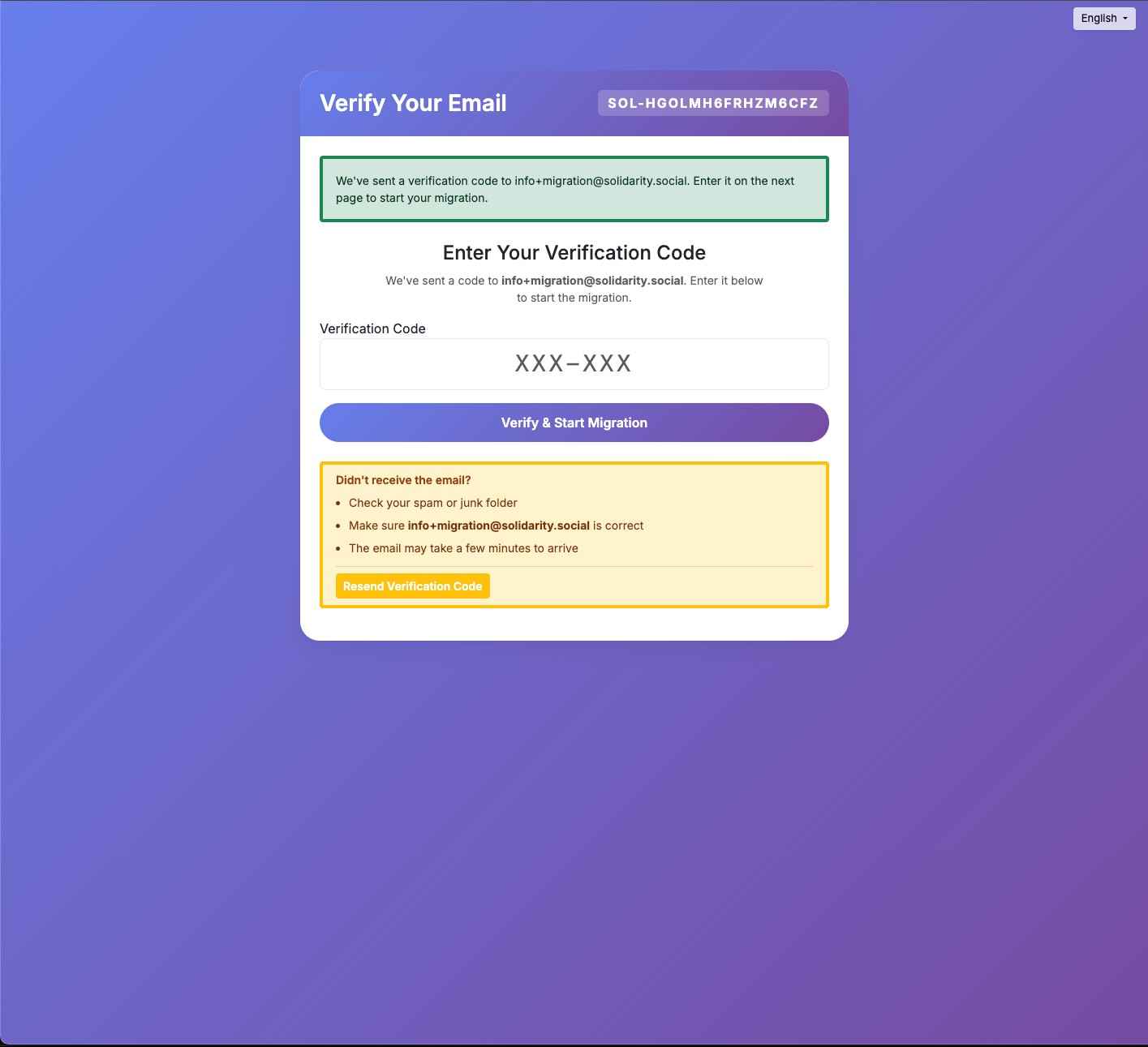
- Enter the verification codes sent to your email
- Start Migration
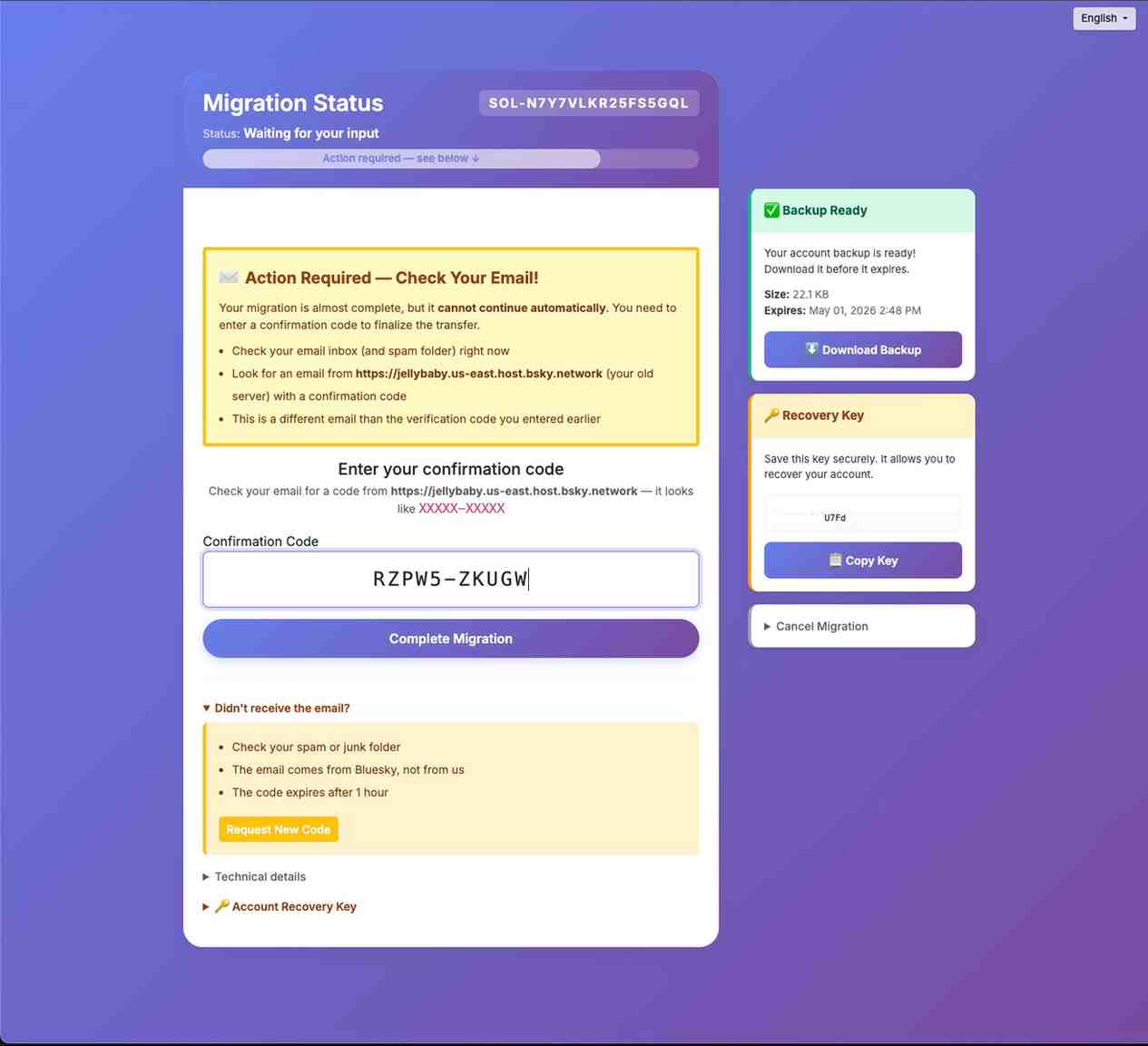
- Watch progress updates.
- Enter the confirmation code sent to your email for the PLC update.
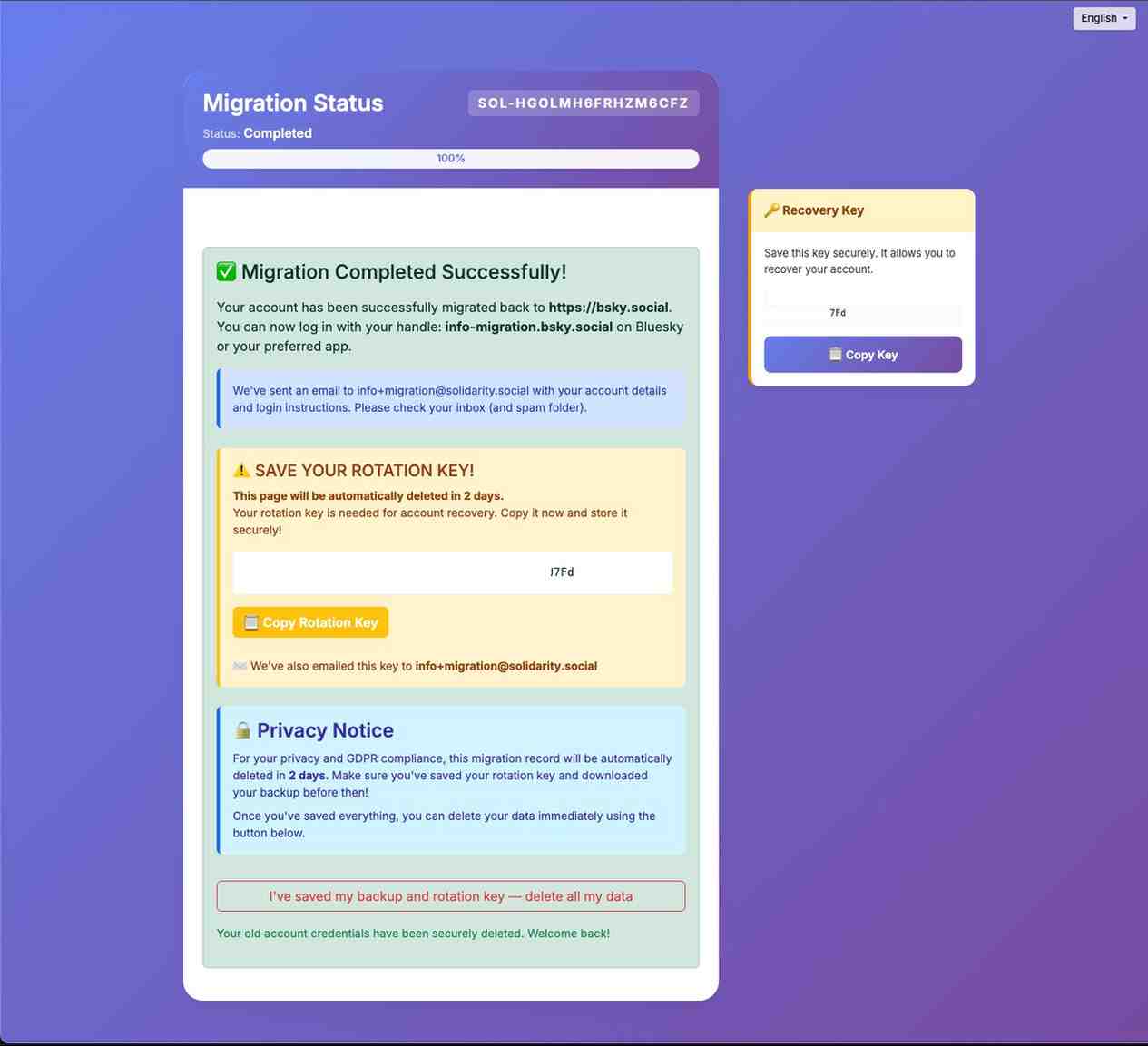
- Wait for the success message before leaving the page.
- Download the backup and save the rotation key provided.
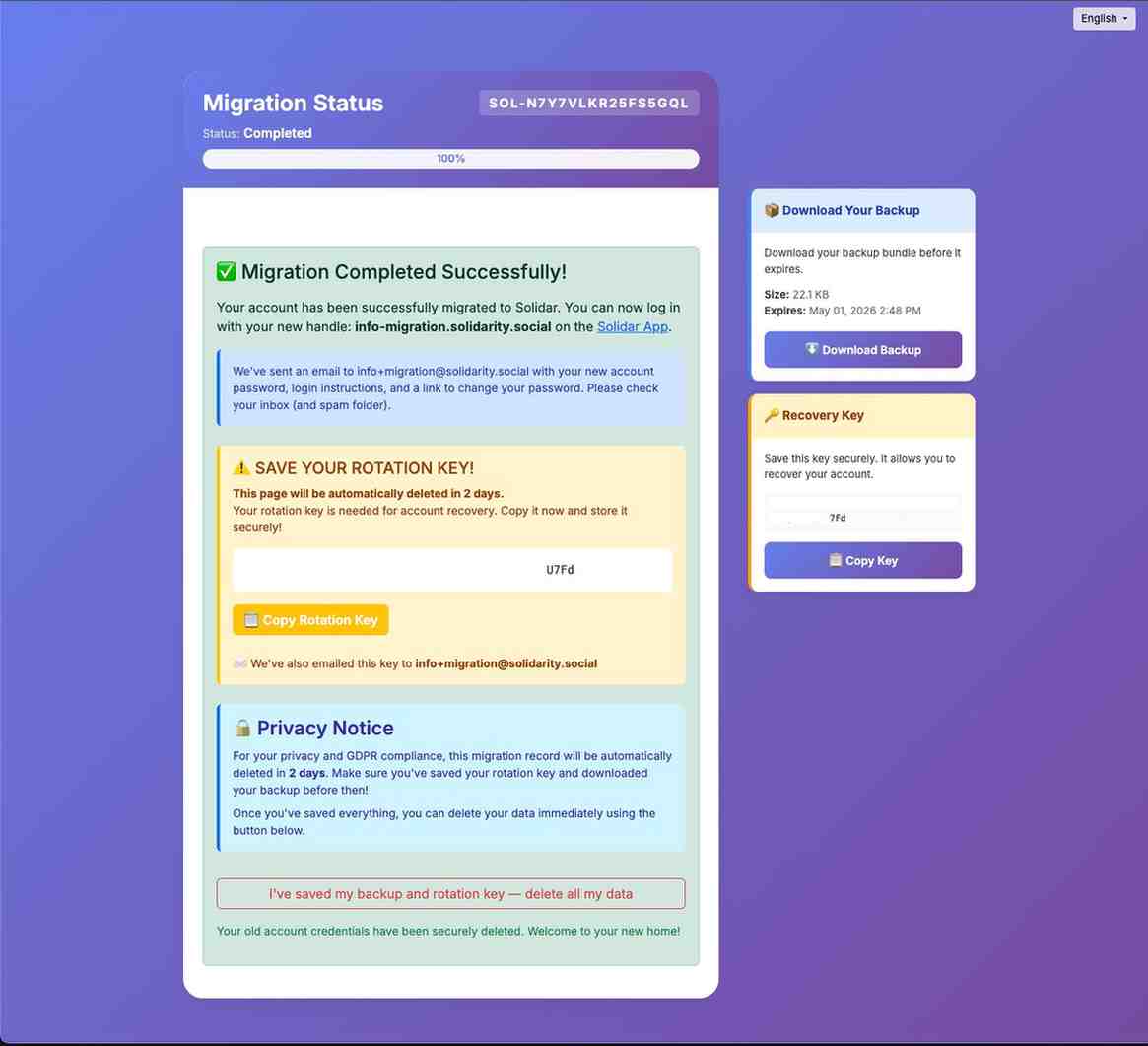
You will receive your password via email.

Step 6: Verify Your Migrated Account
- Sign in to the destination account.
- Check profile info, posts/data, and settings.
- If anything looks missing, use the app's help/support option.
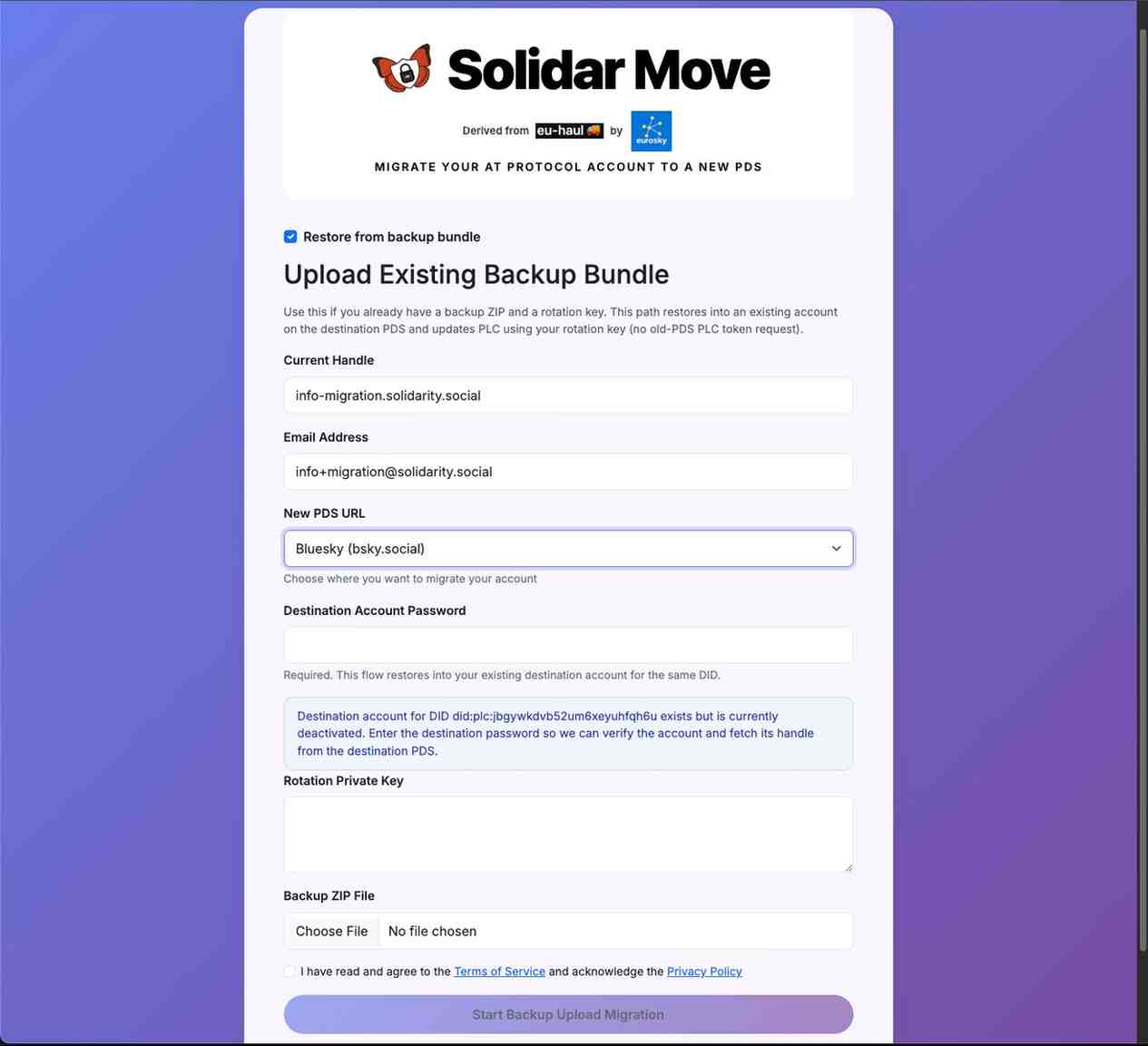
How to Restore an Account from a Backup
This is only possible if you already have an account in the destination PDS, i.e. similar to reverting to a PDS using a backup and rotation key
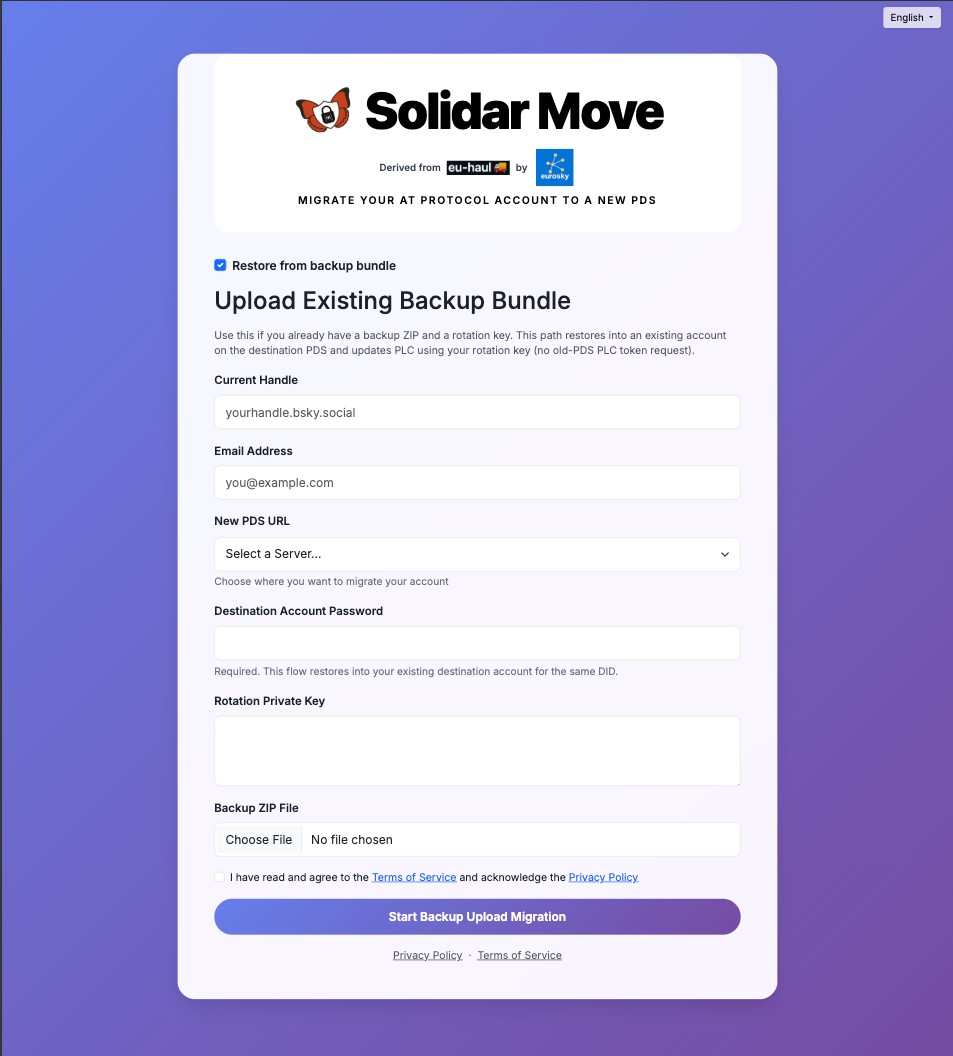
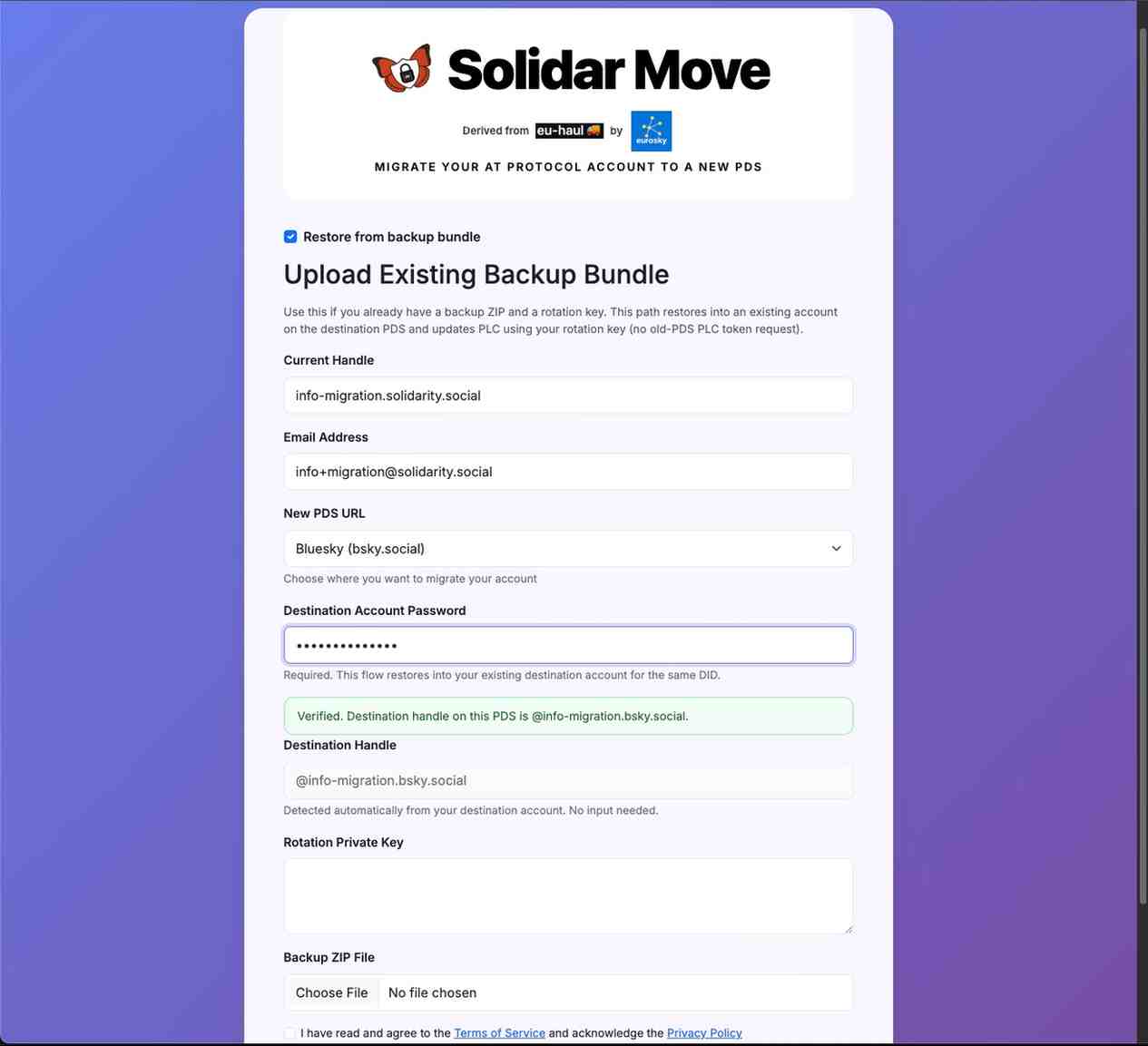
Step 1: Select Restore from Backup bundle
- Fill the form with your current handle and email
- Select New PDS URL (i.e. destination PDS e.g. Bluesky if you want to revert it back)
- Automatically checks if the account exists in destination PDS via prior migrations.
- Provide the password for your handle from the destination PDS
- Automatically shows your destination handle in the destination PDS after password verification.
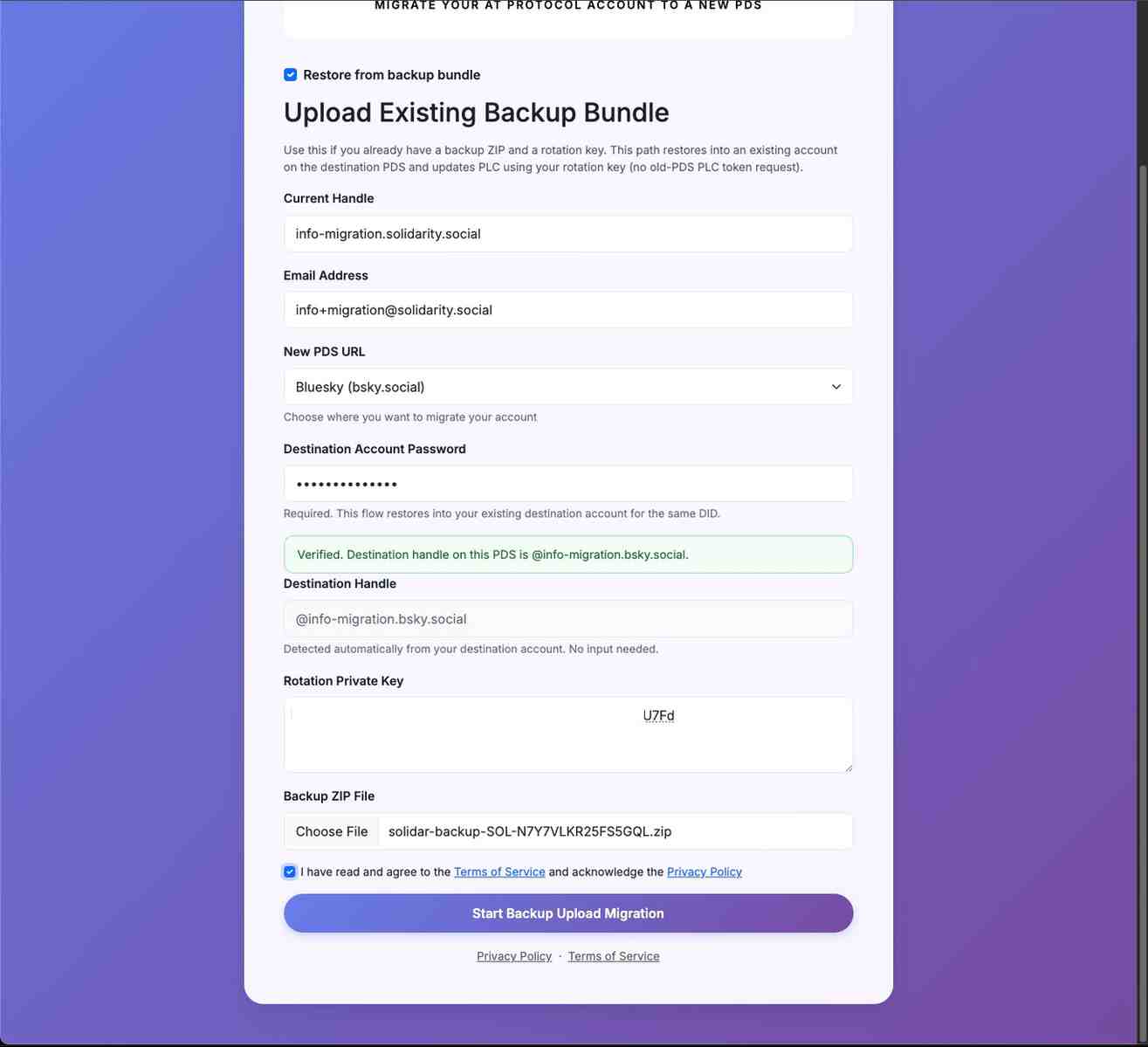
- Provide the rotation key that you saved with the backup
- Provide the backup ZIP file
- Continue and verify your migration
Important Warnings and Limitations
- Migration and restore can take time, especially for large accounts.
- Do not close the app or refresh repeatedly during active transfer.
- Some items may appear later due to background processing.
- A corrupted or partial backup may not restore fully.
- In some cases, certain data types may not be transferable or restorable.
Helpful Tips
- Run migration/restore when your internet is stable.
- Double-check account details before starting.
- Keep a copy of your backup file and rotation key in a safe place.
- Take screenshots of completion messages for your records.
- If a process fails, read the error message first, then retry carefully.
Troubleshooting (Quick)
"Verification failed"
- Recheck your account credentials
- Confirm you are using the correct email/account
- Try again after a short wait
"Backup file not accepted"
- Ensure the file is from a supported backup source
- Re-download or re-export backup if possible
- Try another backup copy if available
"Process stuck on progress screen"
- Wait a little longer (large data can take more time)
- Check your internet connection
- If no progress for a long time, refresh and retry
Need More Help?
If you are still stuck, contact support through the website and include:
- what action you were performing (migrate or restore)
- which step failed
- the error message (if any)
- when the issue occured